How to Securely Delete PDF Pages Locally Without Data Leaks
Published on June 15, 2026
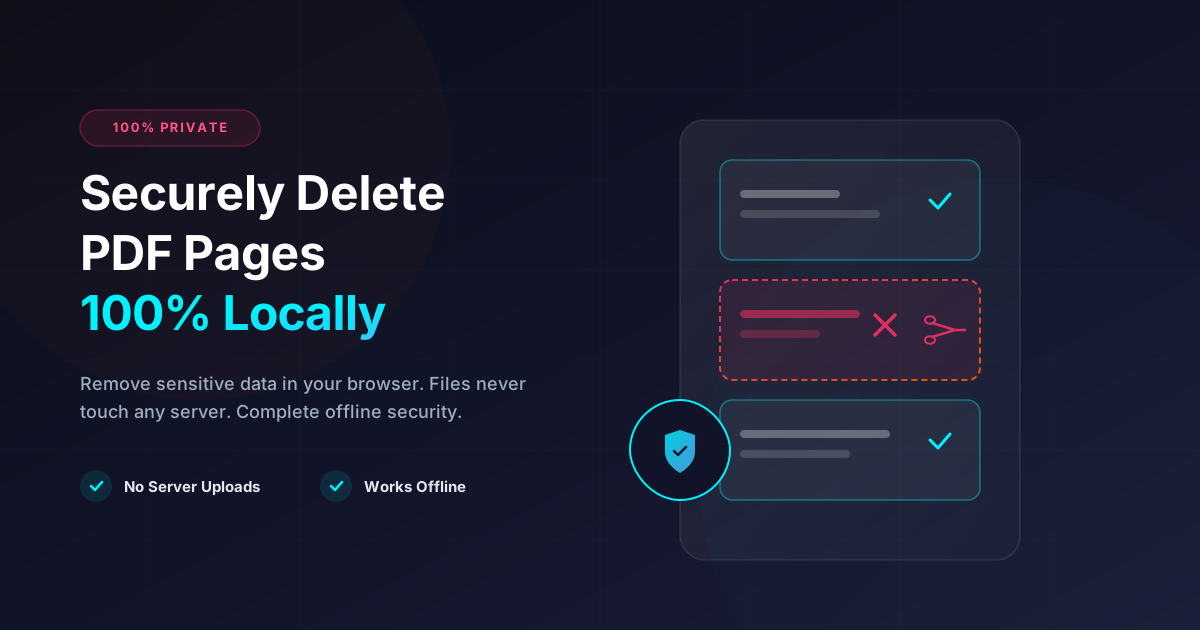
Quick Answer: To securely delete pages from a PDF without risking data leaks, use a client-side tool that processes your files directly in your web browser. This ensures your sensitive documents never leave your local machine or upload to a third-party server.
In an era where data breaches are commonplace, handling sensitive documents requires extreme caution. Whether you are a legal professional managing confidential client records, a medical administrator handling HIPAA-protected health information, or an individual sorting through personal tax documents, sharing PDFs online can be a gamble.
One of the most common document management tasks is removing unwanted or highly sensitive pages before sharing a file. However, using traditional online PDF editors often exposes your private data to significant security risks.
In this comprehensive guide, we will explore why standard online PDF tools pose a threat, how client-side (local) processing solves this problem, and how you can securely delete pages from your PDFs with complete peace of mind.
The Hidden Security Risks of Standard Online PDF Editors
When you search for “delete pages from PDF” on Google, you are met with dozens of free online tools. To the untrained eye, these platforms seem convenient and harmless. However, behind their sleek user interfaces lies a major security vulnerability: server-side processing.
What Happens to Your Files on Their Servers?
When you upload a document to a standard online PDF editor, the file is transferred from your local computer to a remote server owned by the service provider. Once the file is on their server:
- Data is Processed Remotely: The server runs software to manipulate the PDF (e.g., removing the selected pages).
- Temporary Storage Risks: Even if the provider claims to delete files “within 1 hour,” your confidential data remains cached on their hardware during that window.
- Potential for Interception: During transit (uploading and downloading), your data can be intercepted if the connection is not properly encrypted.
- Data Harvesting and Terms of Service: Some free services include clauses in their terms of service that grant them rights to analyze your documents to train machine learning models or improve their services.
For anyone handling proprietary corporate data, financial records, or personal identifying information (PII), this workflow is a massive compliance risk.
The Solution: 100% Client-Side, Local Processing
The modern solution to this security dilemma is client-side processing. Instead of sending your files to a remote server, client-side tools use advanced web technologies (such as WebAssembly and modern JavaScript APIs) to perform all PDF manipulations directly inside your local web browser.
At DumPDF, we believe you should never have to sacrifice your privacy for convenience. Our tools run completely in-browser. When you use our interface to modify a document, your files are never uploaded to a server. The processing happens locally on your CPU, ensuring 100% privacy and zero risk of data leaks. If you disconnect your internet entirely after loading the page, the tool will still work perfectly—proving that your data stays entirely on your device.
Step-by-Step: How to Securely Delete PDF Pages Locally
Removing unwanted pages from your document using a secure, local tool is incredibly straightforward. Here is how you can do it step-by-step:
Step 1: Open the Local PDF Tool
Navigate to the secure delete PDF pages tool. Because this tool operates entirely in your browser, you will notice that it loads instantly and does not require you to create an account or log in.
Step 2: Select Your PDF File
Drag and drop your PDF into the designated area or click to browse your local storage. Remember, when you select your file, it is not being uploaded to a remote server. The browser is simply loading the file into its local memory.
Step 3: Select the Pages to Remove
Once your PDF is loaded, you will see a visual layout of all the pages in your document.
- Simply click on the pages you wish to remove.
- Alternatively, you can type in specific page numbers or page ranges (e.g., “3-5, 12”) to exclude them.
Step 4: Process and Save Locally
Click the “Delete Pages” button. The browser will instantly compile a new PDF excluding the selected pages. Since no upload or download to an external server is required, this process is virtually instantaneous. You will be prompted to save the newly cleaned PDF directly to your hard drive.
Deleting Pages vs. Redacting Content: What is the Difference?
When cleaning up a document for public distribution, it is crucial to understand the difference between removing entire pages and hiding specific text.
- Page Deletion: This process completely removes specific sheets from the document structure. It is ideal when entire sections, appendices, or cover sheets contain irrelevant or private information. If you need to split a massive file into smaller, safer chunks, you can also use our local split PDF tool to divide your document securely.
- Redaction: If you must keep a page but need to hide specific terms (like social security numbers, names, or financial figures), simple page deletion won’t work. For this, you must redact PDF documents. True redaction does not just draw a black box over the text; it completely strips the underlying metadata and text characters from the PDF code so they can never be recovered by copy-pasting or text extraction tools.
The Benefits of Using DumPDF for Local Document Security
By choosing a local-first PDF processing platform like DumPDF, you unlock several key advantages over traditional software and online tools:
| Feature | Traditional Online Editors | DumPDF (Local-First) |
|---|---|---|
| Data Privacy | Low (Files uploaded to remote servers) | 100% Private (No uploads, client-side only) |
| Speed | Slow (Dependent on upload/download speeds) | Instantaneous (Processes at local hardware speed) |
| Offline Capability | No (Requires active internet connection) | Yes (Works offline once loaded) |
| Cost | Often restricted or requires subscriptions | Free and unlimited |
| Security Compliance | Fails strict enterprise data policies | Complies with HIPAA, GDPR, and corporate security |
Best Practices for Maintaining PDF Security
While using a local-first tool like DumPDF eliminates the risk of server-side data leaks, you should still follow these best practices to keep your files secure:
- Verify the URL: Always ensure you are on a secure connection (look for
https://and the lock icon in your browser address bar) to prevent man-in-the-middle attacks. - Clear Your Browser Cache: If you are using a shared or public computer, clear your browser cache and close the browser tabs after modifying your sensitive documents.
- Double-Check Metadata: PDFs often contain hidden metadata (author names, creation dates, revision history). If security is paramount, ensure your final document has its metadata cleaned before sharing.
- Use Strong Passwords: If you are sharing highly sensitive information, consider encrypting your finalized PDF with a strong password to restrict access only to authorized recipients.
Final Thoughts
You should never have to compromise your personal or corporate data security just to perform simple document edits. By shifting your workflow to local, client-side tools, you completely eliminate the middleman and keep your files exactly where they belong: on your own device.
The next time you need to clean up a document, bypass the insecure cloud-based uploaders. Use DumPDF’s suite of secure, browser-based tools to manipulate, split, and delete pages from your PDFs with absolute privacy.
Help Keep DumPDF 100% Free & Private
Zero server uploads • No accounts • No trackers