How to Securely Manage Tax PDFs with Local Encryption
Published on June 6, 2026
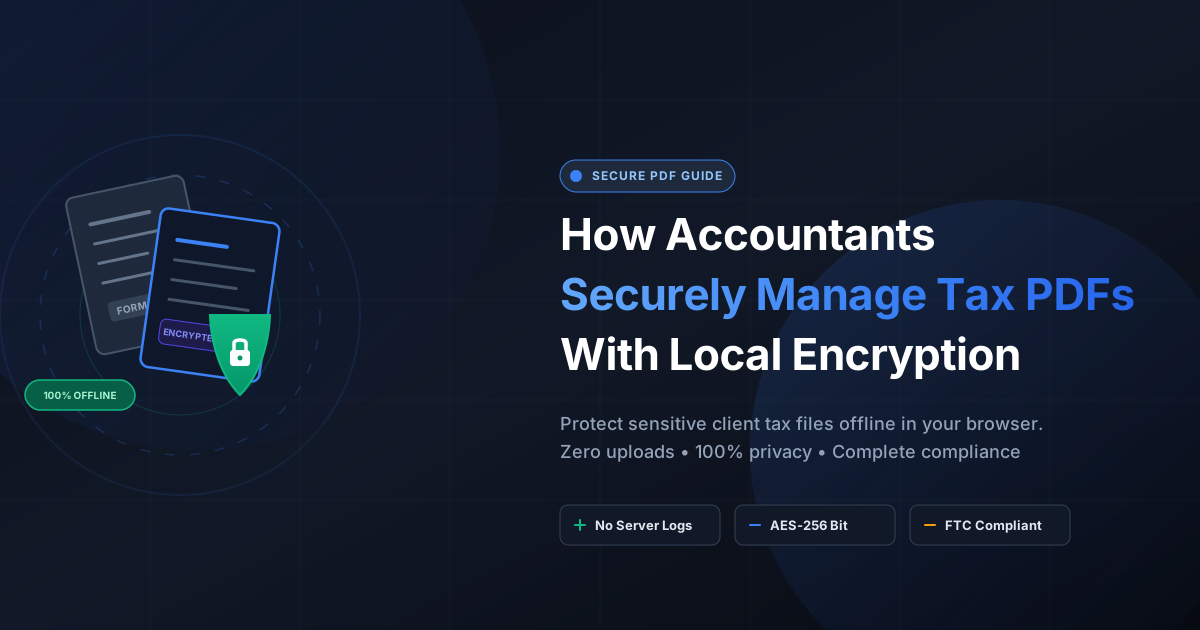
Quick Answer: Accountants can securely manage sensitive tax documents by using local, client-side PDF encryption tools that process files entirely within the web browser. This offline-first approach ensures that highly confidential financial data never leaves the local machine, eliminating the risk of server-side data leaks and cloud-based security breaches.
Tax season brings an immense volume of highly sensitive documents: W-2s, 1099s, balance sheets, and personal identification details. For accountants and financial professionals, protecting this data is not just a best practice—it is a legal and ethical mandate. Under regulations like the Gramm-Leach-Bliley Act (GLBA) and FTC Safeguards Rules, tax professionals must implement strict safeguards to protect client information.
While password-protecting PDF files is a standard security measure, the way you encrypt those files matters. Many online PDF utilities require you to upload your documents to their cloud servers for processing. This creates a critical vulnerability.
In this comprehensive guide, we will explore why traditional cloud-based PDF tools pose a risk to financial professionals and how local, client-side PDF encryption offers a foolproof, zero-trust solution for securing tax documents.
The Hidden Risks of Cloud-Based PDF Tools
Many accountants rely on free online PDF tools to quickly merge, split, or encrypt client files. However, most of these platforms operate on a “server-side” model. Here is how it works:
- You upload your client’s tax return to the website.
- The file is transferred over the internet and stored on the provider’s remote server.
- The server processes the file (e.g., applies encryption).
- You download the modified file back to your computer.
While convenient, this workflow introduces several severe security risks:
1. Data Interception and Server Breaches
Any time a file travels across the internet, it is vulnerable to interception, even with HTTPS encryption. Furthermore, if the PDF utility’s server is breached, or if they have poor data retention policies, your clients’ highly sensitive financial data could be exposed to malicious actors.
2. Lack of Regulatory Compliance
Regulations such as GDPR, HIPAA, and FTC Safeguards require strict control over where personally identifiable information (PII) is stored and processed. Uploading client tax documents to third-party servers—often located in different legal jurisdictions—can result in severe compliance violations and heavy fines.
3. Data Ownership and Tracking
Once a document is uploaded to an external server, you lose physical control over it. There is no absolute guarantee that the server permanently deletes your file immediately after processing, leaving a digital footprint that could come back to haunt your firm.
The Solution: Local, Client-Side PDF Encryption
To eliminate these vulnerabilities, modern financial professionals are shifting toward client-side, offline-first PDF tools.
Tools like DumPDF leverage advanced in-browser technologies (like WebAssembly and local JavaScript libraries) to perform complex PDF manipulation directly on your computer. When you use a client-side tool to protect PDF files with password encryption, the file never leaves your local web browser.
How Local Browser Processing Works
When you drag and drop a tax document into a client-side tool:
- Zero Uploads: The file is loaded into your browser’s local memory (RAM). Absolutely no data is transmitted to an external server.
- Local Execution: Your computer’s CPU performs the encryption, password hashing, and structural changes to the PDF.
- Immediate Saving: The encrypted PDF is generated locally and saved directly to your hard drive.
- 100% Privacy: Because there is no server-side component, your client’s tax data remains entirely private and secure, even if you lose your internet connection mid-process.
Step-by-Step Guide to Securely Encrypting Tax PDFs Locally
Protecting your client’s tax documents with local encryption is simple and takes only a few seconds. Follow these best practices to ensure maximum security:
Step 1: Choose a Strong Password Strategy
A PDF’s encryption is only as strong as its password. Avoid using easily guessable information like the client’s name or birth year. Instead, use a mix of uppercase and lowercase letters, numbers, and special characters. For businesses, consider using a unique, randomly generated passphrase for each client and storing it securely in a password manager.
Step 2: Apply Local Encryption
Using a local browser tool, select your PDF file. Set your strong password and let the browser compile the encrypted file. The resulting PDF will use industry-standard AES (Advanced Encryption Standard) 128-bit or 256-bit encryption, making it virtually impossible for unauthorized parties to open or read.
Step 3: Verify the Encryption
Before emailing the document to your client, try opening the newly encrypted PDF yourself. You should be prompted to enter the password. Verify that the file content remains inaccessible until the correct password is provided.
Essential PDF Security Workflows for Accountants
Encryption is just one piece of the puzzle. To maintain a truly secure document workflow, accountants should integrate several local PDF practices into their daily routines:
1. Permanent Redaction of PII
Before sharing tax documents with third parties (such as mortgage brokers or banks), you must often sanitize the files. Simply drawing a black box over a Social Security Number (SSN) using a standard PDF editor does not delete the underlying text; tech-savvy users can easily copy and paste the hidden text.
You must use a proper redaction tool to redact sensitive PDF data permanently. A local redaction tool strips the actual metadata and text characters from the document structure entirely within your browser, ensuring the hidden information can never be recovered.
2. Secure Document Merging and Splitting
Tax preparation often requires combining multiple financial statements into a single package or splitting a multi-page return into individual schedules. Performing these tasks locally ensures that intermediate, unencrypted versions of your documents are never exposed to cloud servers.
3. Enforcing Permissions (Read-Only vs. Print Restrictions)
In addition to opening passwords, local PDF tools allow you to set “owner passwords” and permissions. You can restrict users from printing the document, copying text, or modifying the content, adding an extra layer of defense against accidental data leaks.
Why DumPDF is the Ultimate Tool for Accountants
DumPDF was designed from the ground up with a privacy-first philosophy. We understand that tax professionals cannot afford to take risks with client data.
- Complete Offline Operation: All of our PDF utilities run entirely inside your browser. You can even disconnect your internet connection, and the tools will continue to work flawlessly.
- No Software Installation: Unlike heavy desktop software that requires administrative privileges and constant security patches, DumPDF runs instantly in any modern web browser on Windows, macOS, or Linux.
- No Account Required: Start securing your files immediately without signing up, sharing your email address, or tracking your usage.
- Fast and Lightweight: Experience lightning-fast processing speeds powered by optimized local scripts, saving you valuable time during the busy tax season.
Conclusion: Build a Zero-Trust Document Workflow
As cyber threats target financial institutions and accounting firms with increasing frequency, relying on cloud-based document processors is a risk no longer worth taking. By adopting a zero-trust, client-side approach to PDF management, you can guarantee 100% data privacy for your clients while staying compliant with strict financial regulations.
Protect your clients, secure your reputation, and streamline your tax season workflows by switching to local, offline-first PDF tools today.
Help Keep DumPDF 100% Free & Private
Zero server uploads • No accounts • No trackers