Securely Add Page Numbers to PDF Offline: Easy Guide
Published on July 25, 2026
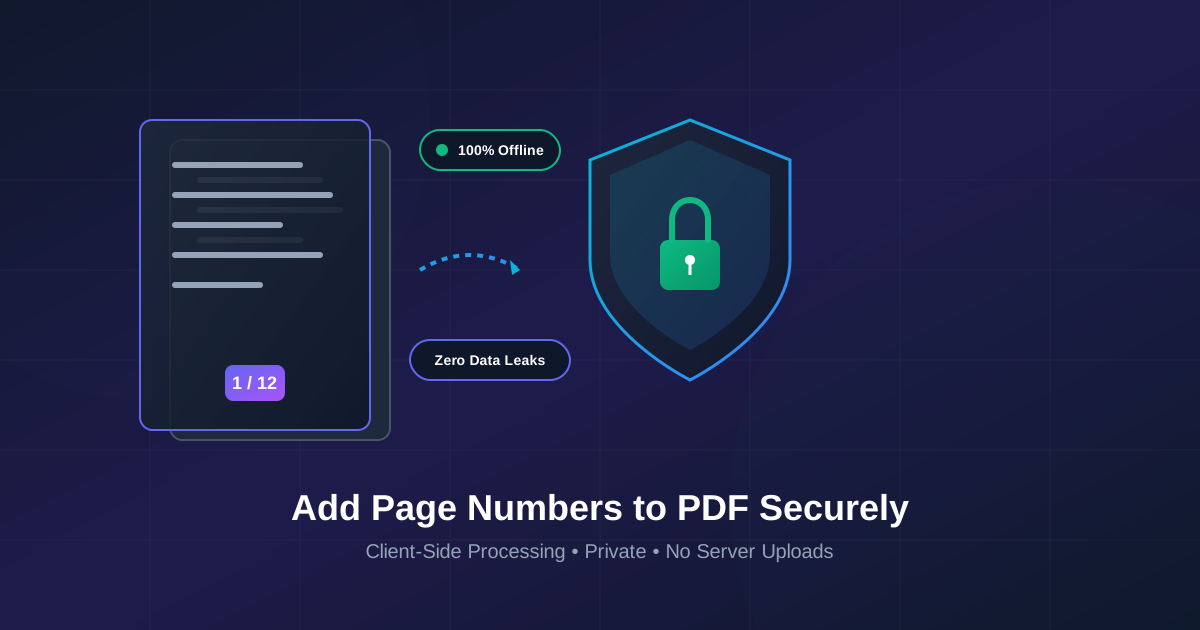
Quick Answer: You can add page numbers to PDF documents securely offline by using modern client-side PDF tools like DumPDF. Because these tools run directly inside your web browser using WebAssembly, your documents are processed locally on your computer and are never uploaded to an external server, guaranteeing 100% privacy and zero data leaks.
In today’s remote-first world, handling confidential PDF documents—such as legal contracts, financial audits, medical records, and proprietary business reports—is a daily requirement. Before sharing or archiving these documents, organizing them with clear, consistent page numbers is essential. However, uploading sensitive PDFs to standard online conversion platforms exposes your data to server-side logging, third-party storage, and potential data breaches.
The optimal solution is to process your files entirely on your device. In this comprehensive guide, we will explore why offline processing is the gold standard for document privacy, and show you step-by-step how to add page numbers to PDF documents securely without internet server interaction.
The Hidden Risks of Server-Based PDF Tools
When you use a conventional online PDF editor, your file is uploaded across the public internet to a remote cloud server. Once on the server, third-party code processes the document before sending the modified version back to your browser.
While convenient, this architecture presents several serious security and compliance risks:
- Uncontrolled Data Retention: Many cloud services cache or store your uploaded files on temporary storage volumes for hours or even days.
- Regulatory Non-Compliance: Storing or processing sensitive customer data on unauthorized cloud servers can breach compliance standards such as GDPR, HIPAA, and SOC 2.
- Man-in-the-Middle Vulnerabilities: Intercepted network transit or compromised server storage can expose unencrypted confidential data.
- Bandwidth Dependencies: Large documents take significant time to upload and download, making cloud processing inefficient for large files or slow internet connections.
How In-Browser, Offline PDF Processing Works
Fortunately, modern web technology has evolved significantly. Thanks to WebAssembly (WASM) and modern JavaScript engines, sophisticated document manipulation code can run directly inside your local web browser sandbox.
When you use client-side platforms like DumPDF, the web application loads the processing code once into your browser’s local memory. From that point forward:
- Zero Bytes Leave Your Device: Your PDF file is read straight from your local hard drive into your browser’s local sandbox memory.
- Pure Local Computation: The CPU on your computer renders the page numbers onto the PDF canvas directly.
- Total Internet Independence: You can turn off your Wi-Fi, enable Airplane Mode, and the page numbering tool will continue to function seamlessly.
This local-first architecture eliminates third-party security threats and ensures your private data remains completely confidential.
Step-by-Step: Adding Page Numbers to a PDF Securely Offline
Applying page numbers locally requires no software installation or complicated terminal commands. Here is how to paginate your PDFs privately:
Step 1: Open the Client-Side Page Numbering Tool
Navigate to the add page numbers to PDF tool. Once the webpage loads, the underlying script is stored in your browser cache. To verify total offline functionality, you can disconnect your internet connection at this stage.
Step 2: Select Your PDF File
Click the file selector or drag and drop your document into the browser window. Because processing happens locally, even a multi-gigabyte document loads almost instantly without any network upload delays.
Step 3: Customize Your Page Numbering Format
Configure how and where you want your page numbers to appear:
- Position: Choose top or bottom placement, aligned to the left, center, or right.
- Number Format: Select standard numbers (1, 2, 3), formal pagination (Page 1 of N), or custom prefix/suffix labels.
- Page Range: Specify whether to skip the title cover page or paginate only specific sections.
- Font & Formatting: Adjust font size, color, and margin offsets to match your document’s aesthetic.
Step 4: Generate and Download Your Updated PDF
Click the Process PDF button. Your browser will execute the changes locally in milliseconds. Click download to save the newly paginated PDF directly back to your local file storage.
Recommended Workflow for Secure Document Preparation
Adding page numbers is often just one step in a comprehensive document preparation workflow. To maintain end-to-end security, every stage of your PDF editing should take place offline on your machine.
Here is a recommended local workflow for preparing professional documents:
- Clean Up Pages: Remove unnecessary cover sheets or blank pages first. You can delete unwanted PDF pages locally using client-side tools before applying final page numbers.
- Apply Pagination: Use the offline page numbering tool to establish precise document order.
- Apply Confidentiality Protection: If your document contains sensitive IP or financial data, you can protect your PDF with password security before sharing it via email or local network drives.
Online vs. Offline Client-Side PDF Tools: Key Comparison
| Feature / Capability | Cloud-Based PDF Editors | Client-Side Offline Tools (DumPDF) |
|---|---|---|
| File Location During Processing | Uploaded to Remote Servers | Stays 100% on Local Device |
| Data Leak Risk | Moderate to High | Zero |
| Requires Internet Connection | Yes | No (Works Offline) |
| Compliance (GDPR/HIPAA) | Requires Strict Vetting | Inherently Compliant |
| Processing Speed | Limited by Upload/Download Speeds | Instant (Hardware Acceleration) |
| File Size Limits | Often Capped by Upload Limits | Limited Only by Device RAM |
Frequently Asked Questions (FAQs)
Is client-side processing truly offline?
Yes. Client-side tools execute JavaScript and WebAssembly code directly within your web browser. After the web page initially loads, no further server interaction takes place. You can test this by opening the page, turning off your Wi-Fi, and processing your PDF document without internet access.
Will adding page numbers alter the original content of my PDF?
No. Local PDF engines layer the page numbers onto a transparent vector overlay without altering or modifying the underlying text layers, embedded images, or existing digital annotations.
Can I skip numbering the title page or cover sheet?
Yes. The numbering options allow you to define custom starting pages (e.g., start numbering as “Page 1” beginning on physical page 2 or 3 of the document).
Conclusion
Organizing your business and personal PDFs should not come at the cost of your digital privacy. By transitioning from legacy cloud-upload tools to modern client-side solutions, you maintain full control over your private information while enjoying faster, unrestricted file processing.
Try the add page numbers to PDF tool on DumPDF today to experience secure, instant, and zero-upload PDF editing directly in your web browser.
Help Keep DumPDF 100% Free & Private
Zero server uploads • No accounts • No trackers