How to Rotate and Organize Scanned PDF Pages Offline
Published on May 22, 2026
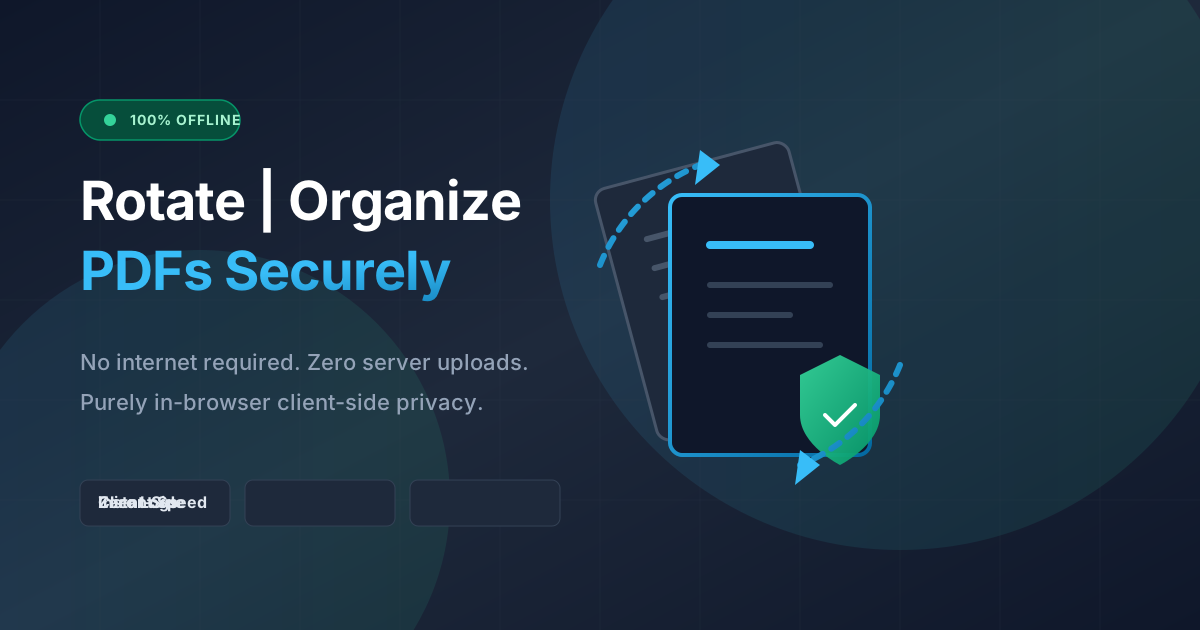
Quick Answer: You can safely rotate and organize scanned PDF pages offline using local software or client-side browser tools like DumPDF. Because these tools process files directly in your web browser without uploading them to a remote server, your sensitive documents remain 100% private and accessible even without an internet connection.
Scanning physical documents is a routine task for businesses, students, and home offices alike. However, anyone who has ever used a multi-page sheet-fed scanner knows that things rarely go perfectly. Pages end up upside down, landscape sheets are saved in portrait orientation, and critical pages occasionally scan out of order.
While the internet is flooded with quick-fix online PDF editors, uploading sensitive tax forms, medical records, or legal contracts to third-party servers poses massive privacy risks.
In this comprehensive guide, we will explore how to rotate and organize scanned PDF pages without internet access, ensuring your data remains completely secure, private, and under your control.
Why You Should Process PDFs Offline (The Privacy Argument)
When you upload a document to a typical “free” online PDF utility, your file is sent to an external server. Once there, you lose visibility over how that data is stored, who has access to it, and whether it is being cached or analyzed. For professionals handling protected health information (PHI), financial data, or proprietary intellectual property, this is a major compliance risk.
The Benefits of Client-Side, Local Processing
Fortunately, modern web technology allows for a hybrid approach: tools that run in your web browser but perform 100% of the processing locally on your machine. This is known as client-side processing.
- Zero Server Uploads: Your files never leave your device. The code runs directly in your browser’s local sandbox memory.
- Total Offline Functionality: Once the web application is loaded, you can disconnect your internet entirely and continue to edit, arrange, and rotate PDF files without a single byte of data leaving your computer.
- Instant Speeds: Because you don’t have to upload massive, high-resolution scanned PDFs to a remote server and download them again, processing is nearly instantaneous.
How to Rotate Scanned PDF Pages Without Internet Access
Scanned documents often require orientation adjustments. If a page was fed into the scanner sideways, reading it becomes a chore. Here is how you can correct this offline.
Method 1: Using In-Browser Client-Side Tools (Like DumPDF)
Modern platforms like DumPDF leverage WebAssembly and local JavaScript to manipulate PDFs inside your browser window.
- Open the Tool: Navigate to the local PDF utility while online, or keep the page open. (Once loaded, you can turn off your Wi-Fi).
- Import Your Scanned PDF: Drag and drop your misaligned file into the workspace.
- Select Pages to Rotate: Click on individual page thumbnails or select all pages.
- Apply Rotation: Click the rotate clockwise or counterclockwise buttons until the pages are correctly oriented.
- Save Locally: Export the modified document directly to your local storage.
Method 2: Using Built-in Desktop Applications
If you prefer native desktop software and are entirely offline, both Windows and macOS offer built-in options:
- On macOS (Preview): Open your PDF in the native Preview app. Click the page thumbnail in the sidebar, press
Cmd + Rto rotate it, and save the file. - On Windows (Edge/Web Browsers): While Windows doesn’t have a dedicated built-in PDF editor, you can open PDFs in Microsoft Edge offline, use the print-to-PDF function, or use offline-enabled open-source tools like PDFsam (PDF Split and Merge).
How to Organize and Reorder Scanned Pages Offline
A shuffled stack of scanned papers can ruin the flow of a contract or report. Reordering pages locally is just as straightforward as rotating them.
Step-by-Step: Reordering Pages on Your Device
Using a client-side interface, you can easily reorder PDF pages without risking your data:
- Load the PDF: Drop your document into your offline-enabled browser tool.
- Visual Reordering: Most local tools display a grid of page thumbnails. Simply click, hold, and drag the thumbnails into the correct chronological order.
- Delete Unwanted Pages: If your scanner accidentally pulled through a blank separator page or a duplicate sheet, you can delete it from the assembly window instantly.
- Download the Compiled File: Click save to generate the newly ordered PDF file locally.
The Technology Behind Offline Browser-Based PDF Tools
You might wonder: How can a website work without the internet?
The secret lies in technologies like WebAssembly (Wasm) and advanced client-side JavaScript libraries (such as pdf-lib or pdf.js).
Traditionally, browsers were only capable of displaying simple HTML and CSS, relying on servers to do heavy computational work. Today, WebAssembly allows developers to compile high-performance code (written in languages like C++ or Rust) and run it directly inside the browser at near-native speeds.
When you use an offline-first tool like DumPDF:
- The browser downloads the static application code once.
- When you drag a PDF into the browser, the local JavaScript engine reads the file’s binary data directly from your hard drive into your computer’s RAM.
- The local code manipulates the PDF structure (rotating pages, changing page indices, or merging documents).
- The browser prompts a local download of the newly generated binary file.
At no point in this lifecycle is a connection to an external server required to process your file.
Best Practices for Scanning and Managing PDFs Securely
To keep your digital archiving workflow clean, fast, and secure, adopt these professional habits:
- Scan at 300 DPI: This is the sweet spot for scanned documents. It provides high enough quality for Optical Character Recognition (OCR) while keeping file sizes small enough for rapid offline editing.
- Use Descriptive File Names: Avoid generic names like
Scan_001.pdf. Use structured naming conventions likeYYYY-MM-DD_DocumentType_ProjectName.pdf. - Always Verify Offline Status: If you are dealing with highly sensitive data, verify that your browser tool works with your internet connection disabled (e.g., in Airplane Mode) before importing your files.
Conclusion
Managing your documents shouldn’t require compromising your privacy. By utilizing offline-first, client-side tools, you can rotate, reorder, and organize your scanned PDFs quickly and securely. Your files stay on your machine, your data remains confidential, and you can get your work done anywhere—even without an internet connection.
Help Keep DumPDF 100% Free & Private
Zero server uploads • No accounts • No trackers