How to Make Scanned PDFs Searchable Offline (100% Secure)
Published on May 30, 2026
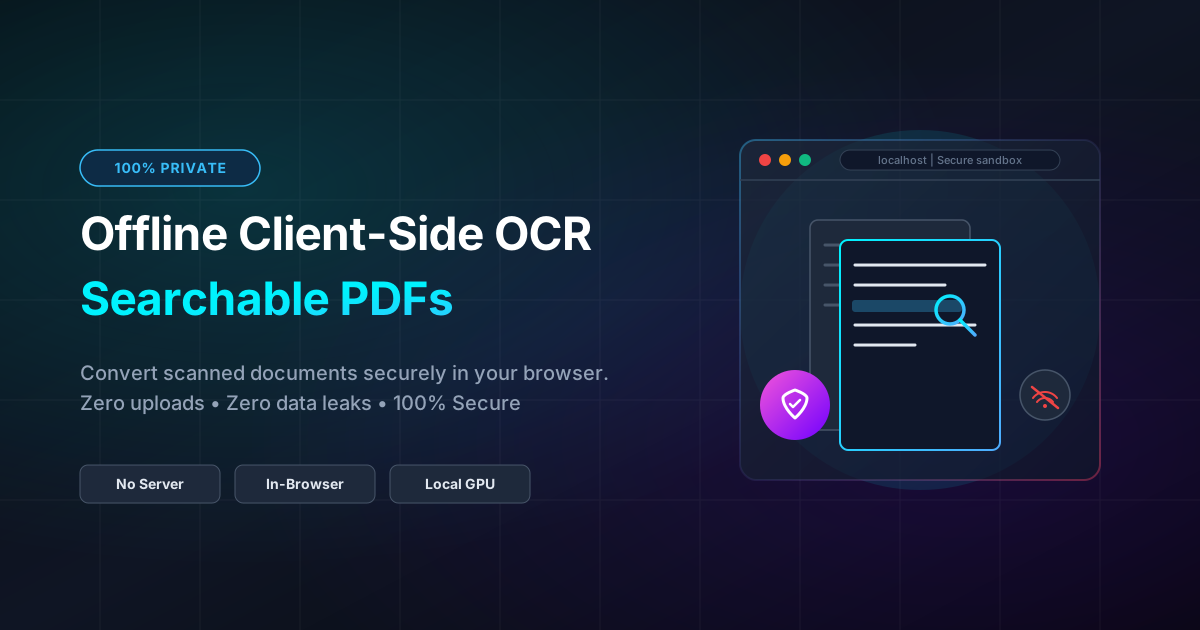
Quick Answer: You can make scanned PDFs searchable offline by using client-side OCR (Optical Character Recognition) tools that run directly in your web browser. This process extracts text locally on your device without uploading your sensitive documents to external servers, ensuring 100% privacy.
Scanned PDFs are a staple of modern business, legal, and personal workflows. Whether it is a scanned contract, a receipt, or an old book chapter, these files are essentially flat image files saved inside a PDF wrapper.
The problem? You cannot search for keywords, copy text, or easily index their contents.
To fix this, you need Optical Character Recognition (OCR). However, most online OCR tools require you to upload your documents to their servers. If you are handling sensitive financial statements, legal contracts, or medical records, uploading them to a third-party server is a massive security risk.
In this guide, we will explore how to make scanned PDFs searchable offline using client-side OCR—a revolutionary technology that processes your files entirely within your browser, ensuring your data never leaves your computer.
The Problem with Scanned PDFs
When you scan a physical document to a PDF, the scanner does not recognize the letters on the page. Instead, it takes a high-resolution photograph of the document and saves it as a PDF.
Because the computer sees this document as a giant image, you lose critical capabilities:
- No Ctrl+F (or Cmd+F) Search: You cannot quickly find specific terms or numbers.
- No Text Selection: You cannot highlight or copy text to paste into other applications.
- No Screen Reader Compatibility: Visually impaired users cannot use assistive technologies to read the document.
- Poor Archiving: Document management systems cannot index the text for easy retrieval later.
To turn these flat images into interactive, selectable text, you need to apply an OCR layer.
The Hidden Security Risks of Traditional Cloud OCR
If you search for “free PDF OCR” online, you will find dozens of web-based tools. While convenient, the vast majority of these platforms rely on server-side processing.
Here is what happens behind the scenes when you use a server-side tool:
- You drag and drop your PDF into the website.
- The file is uploaded over the internet to the company’s remote cloud server.
- The server processes the OCR and creates a searchable PDF.
- You download the final file from their server.
This workflow presents several critical issues:
- Data Breaches: If the service provider’s server is hacked, your sensitive documents could be exposed.
- Privacy Policy Loopholes: Some free tools monetize your data or train AI models on your uploaded files.
- Regulatory Compliance Issues: Uploading files to external servers often violates strict data privacy regulations like GDPR, HIPAA, or CCPA.
For professionals handling proprietary data, client-side processing is not just a preference—it is a compliance requirement.
Enter Client-Side OCR: How It Works Offline
Client-side OCR solves the privacy dilemma by shifting the computational workload from a remote server to your local machine.
Thanks to modern web standards like WebAssembly (Wasm), complex algorithms that once required heavy server infrastructure can now run directly inside your web browser’s sandbox. WebAssembly allows compiled code (like high-performance OCR engines) to run at near-native speeds on your local CPU.
When you use a client-side tool:
- The OCR software loads directly into your browser’s temporary memory.
- You select your PDF file.
- Your computer’s local processor performs the character recognition.
- The searchable PDF is generated locally and saved to your downloads folder.
Because 0% of the data is uploaded to a server, your files remain 100% private. In fact, once the web application is loaded, you can completely disconnect your internet, and the OCR process will still work flawlessly.
Step-by-Step: How to Make a PDF Searchable Offline
Ready to convert your scanned files without compromising your privacy? Follow these simple steps using DumPDF’s secure, local processing engine.
Step 1: Open the Local OCR Tool
Navigate to the client-side OCR PDF tool. Because this tool runs entirely in-browser, you do not need to install any heavy software or sign up for an account.
Step 2: Disconnect from the Internet (Optional)
To prove that your data is staying local, you can turn off your Wi-Fi or unplug your ethernet cable. The application will continue to run because all the necessary processing scripts are already loaded in your browser’s active tab.
Step 3: Load Your Scanned PDF
Drag and drop your scanned document into the processing area. The tool will parse the image layers locally.
Step 4: Run the OCR Engine
Select your document’s language and click “Recognize Text.” Your device’s CPU will begin analyzing the pixels, identifying characters, and mapping them to a searchable text layer.
Step 5: Download Your Searchable PDF
Once processing is complete, save the newly generated document. You can now open it in any viewer, search for terms using Ctrl+F, and highlight or copy text with ease.
Why Client-Side Processing is the Future of PDF Management
The transition from cloud-hosted PDF manipulation to local, browser-based execution offers several distinct advantages:
| Feature | Cloud-Based OCR | Client-Side OCR (DumPDF) |
|---|---|---|
| Data Privacy | High Risk (Files uploaded to third-party servers) | 100% Secure (Files never leave your machine) |
| Internet Dependency | Required (High bandwidth needed for uploads/downloads) | None (Works completely offline once loaded) |
| Processing Speed | Dependent on internet upload speed and server queues | Dependent on local device hardware (usually instant) |
| Compliance | Hard to verify (GDPR/HIPAA risks) | Fully Compliant (No data transfer occurs) |
Building a Fully Secure, Local PDF Workflow
Converting scanned documents is often just the first step in a larger document management cycle. Once your document is fully searchable, you can combine it with other client-side tools to maintain an ironclad, private workflow.
For example, if you are preparing legal or financial documents for external sharing, you might need to redact sensitive PDF information such as social security numbers, private addresses, or financial figures. Just like local OCR, doing this client-side ensures that the sensitive data you are blacking out is permanently scrubbed on your own machine before it is ever shared with anyone else.
By keeping your entire PDF pipeline—from OCR to redaction—inside your local browser environment, you eliminate external vulnerabilities entirely.
Conclusion
Making scanned PDFs searchable no longer requires you to compromise your digital privacy. By leveraging client-side OCR technology, you can enjoy the speed and convenience of web-based tools with the absolute security of offline desktop applications.
Next time you need to find a keyword in a scanned invoice, receipt, or contract, skip the risky cloud uploads and opt for a private, in-browser solution that keeps your data where it belongs: in your hands.
Help Keep DumPDF 100% Free & Private
Zero server uploads • No accounts • No trackers