Local PDF to Image Conversion: The Ultimate Privacy Guide
Published on May 16, 2026
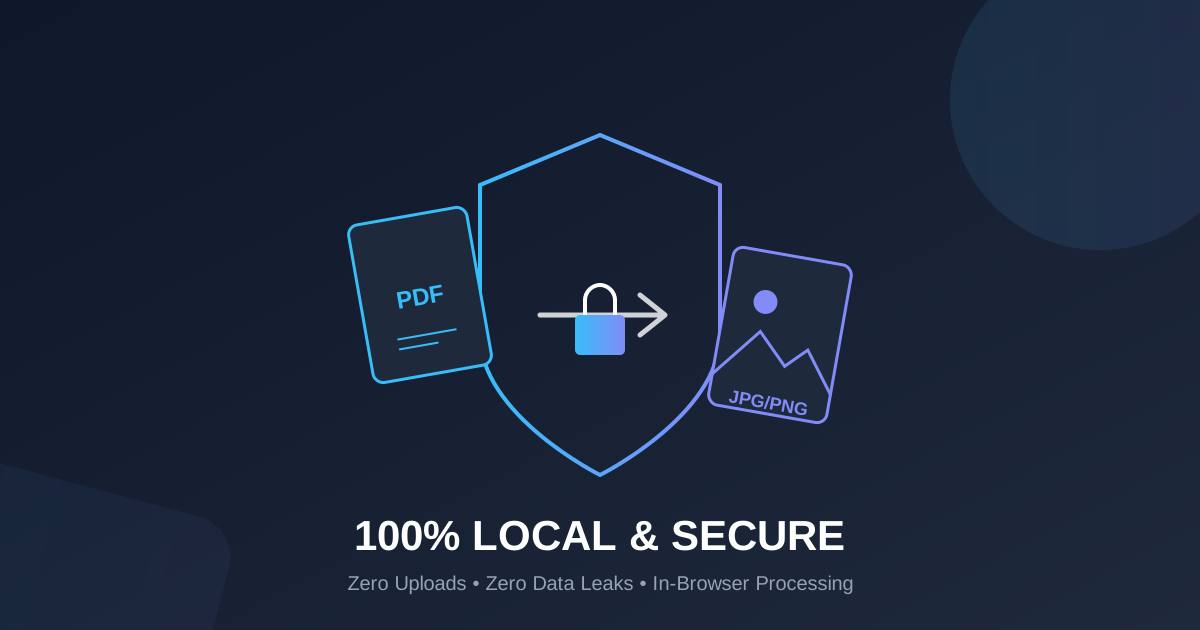
Quick Answer: The safest way to convert a PDF to an image (JPG or PNG) is to use a local, client-side tool like DumPDF. This ensures your browser processes the conversion directly on your computer’s CPU, meaning your sensitive documents are never uploaded to a cloud server, eliminating the risk of data leaks.
In an era where data privacy is becoming a luxury rather than a standard, the way we handle our digital documents matters more than ever. Whether you are a professional handling sensitive legal contracts or a student organizing study notes, converting a PDF to an image format like JPG or PNG is a common task. However, the method you choose to perform this conversion can be the difference between a secure workflow and a major data leak.
This guide explores the ultimate way to convert PDFs to images: locally. We will dive into why local processing is superior to cloud-based alternatives and how tools like DumPDF are revolutionizing document management by keeping your files strictly on your own device.
Why Convert PDF to Image?
Before we get into the “how,” let’s look at the “why.” PDF (Portable Document Format) is excellent for preserving layout, but it isn’t always the most versatile format for every platform.
- Social Media Sharing: Platforms like Instagram or LinkedIn favor image formats. Converting a PDF slide into a high-quality PNG makes it instantly shareable.
- Embedding in Documents: If you are writing a report in Word or a presentation in PowerPoint, inserting a JPG is often easier and more stable than embedding a PDF object.
- Universal Compatibility: Every device, from a 10-year-old smartphone to a modern smart TV, can open a JPG. The same cannot always be said for complex PDF files.
- Web Design: Developers often prefer images for static content to ensure fast loading times and consistent rendering across different browsers.
The Hidden Dangers of Online PDF Converters
If you search for “PDF to Image” on Google, you will find hundreds of free online tools. Most of these operate on a “Cloud-Processing” model. Here is how they usually work:
- You upload your file to their server.
- Their server processes the file.
- You download the result.
While convenient, this poses significant risks. Once your file is uploaded, you lose control over it. Who has access to that server? How long is the file stored? Is it being used to train AI models? For businesses dealing with NDAs or individuals handling medical records, this “upload-and-pray” method is a massive security liability.
The Solution: Client-Side (Local) Processing
The modern alternative is client-side processing. This technology allows your web browser to act as a powerful workstation. Instead of sending your file to a remote server, the conversion happens right inside your browser’s memory using your computer’s own CPU.
When you convert PDF to image using a local-first tool, your data never leaves your computer. This provides several key advantages:
1. 100% Privacy and Security
Since there is no upload, there is no risk of interception. Your sensitive information remains invisible to the service provider and potential hackers.
2. Zero Data Leaks
Data breaches happen to the biggest companies. By using a tool that doesn’t store your files, you eliminate the risk of your documents being part of the next big headline about a server leak.
3. Speed and Efficiency
You don’t have to wait for a 50MB file to upload and then wait again to download the results. Local processing is limited only by your hardware’s speed, making it nearly instantaneous for most standard documents.
4. Offline Capability
Many client-side tools, including DumPDF, can function even if your internet connection drops mid-process, as the “engine” is already loaded into your browser.
How to Convert PDF to JPG/PNG Locally with DumPDF
Converting your files locally is surprisingly simple. You don’t need to install heavy software or learn complex command-line tools. Here is the step-by-step process:
- Navigate to the Tool: Open your browser and go to the DumPDF PDF to Image tool.
- Select Your File: Click the upload area or drag and drop your PDF. Notice how the “upload” happens instantly? That’s because the file is simply being read by your browser, not sent to a server.
- Choose Your Format: Select between JPG (best for photos and smaller file sizes) or PNG (best for text-heavy documents and transparency).
- Adjust Quality: Choose the resolution that fits your needs.
- Convert and Save: Hit the convert button. The browser processes the pages and prompts you to save the images directly to your hard drive.
If you find that your resulting images are too large for email, you can always compress PDF before converting to ensure the final image output is optimized.
JPG vs. PNG: Which Should You Choose?
When converting a PDF, you are usually given the choice between these two formats.
- Choose JPG if: You are converting a PDF that contains many photographs or complex gradients. JPG is a “lossy” format, meaning it reduces file size by slightly lowering detail, which is usually unnoticeable in photos.
- Choose PNG if: Your PDF contains text, logos, or line art. PNG is “lossless,” meaning it preserves every pixel perfectly. It also supports transparent backgrounds, which is vital for graphic design.
Beyond Conversion: A Complete Local Toolkit
Converting a PDF to an image is often just one step in a larger workflow. Because DumPDF is built on the philosophy of “Privacy First,” the entire suite of tools operates locally. Whether you need to merge multiple reports, redact sensitive information, or sign a contract, you can do it all without ever uploading a single byte to the cloud.
The shift toward local-first software is not just a trend; it is a necessary evolution in digital safety. By choosing tools that respect your data boundaries, you take back control of your digital footprint.
Conclusion
Converting PDFs to images doesn’t have to be a choice between convenience and security. By utilizing local, in-browser processing, you get the best of both worlds: the ease of a web-based interface and the ironclad security of offline software.
Next time you need to transform a document, remember: if you have to “upload” it, you’re taking a risk. Keep it local, keep it fast, and most importantly, keep it private with DumPDF.
Help Keep DumPDF 100% Free & Private
Zero server uploads • No accounts • No trackers