How to Merge PDF Files Safely: Protect Private Data
Published on June 4, 2026
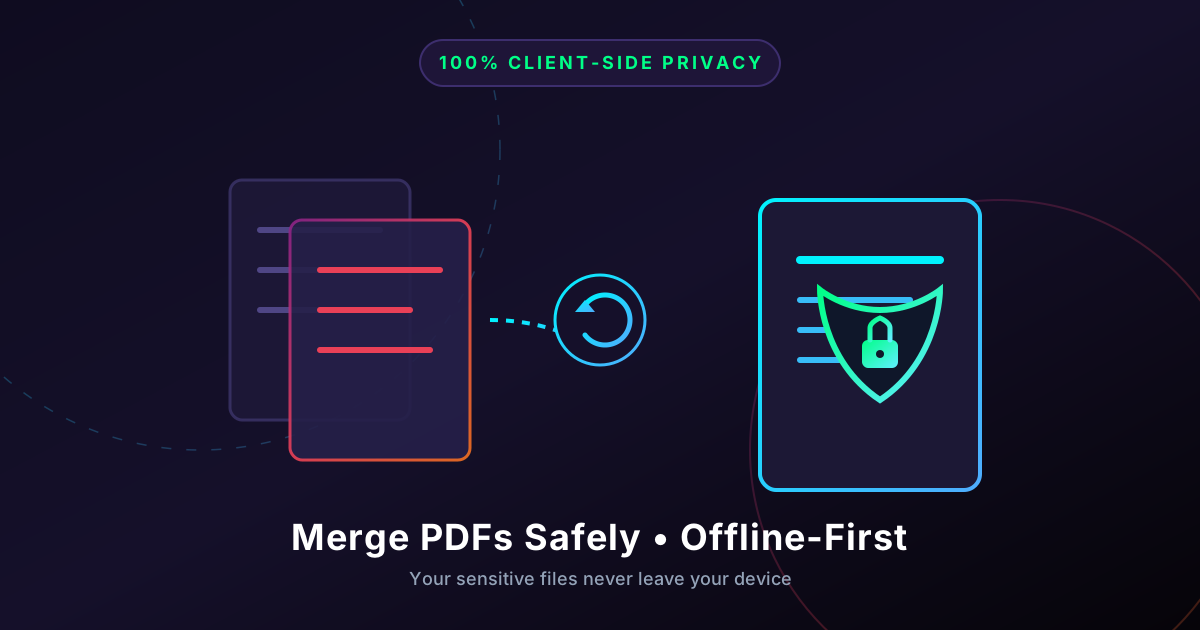
Quick Answer: To merge PDF documents containing private data safely, use a client-side tool that processes files locally in your browser without uploading them to an external server, eliminating the risk of data leaks.
In today’s digital-first world, the PDF is the undisputed king of document formats. We use PDFs for everything: tax returns, medical records, legal contracts, business proposals, and financial statements. Often, you may find yourself needing to combine multiple documents into a single, cohesive file.
However, when those documents contain highly sensitive, private data, a simple task like merging files can become a security minefield.
Most free online PDF utilities require you to upload your files to their remote servers. Once your files leave your device, you lose control over them. In this comprehensive guide, we will explore the hidden risks of cloud-based PDF tools, explain how to merge your files with 100% privacy, and show you how client-side technology is changing the game for data security.
The Hidden Risks of Cloud-Based PDF Merging
When you search for “merge PDF online” on Google, you are met with millions of results. Most of these platforms offer free, fast services. But have you ever stopped to ask: How are these tools free, and what happens to my data once I click “Upload”?
When you upload a document to a typical cloud-based PDF editor, several things happen behind the scenes:
- Server Transfer: Your files travel across the internet to a third-party server. Even if the transfer is encrypted (HTTPS), the file still lands on a physical server owned by someone else.
- Data Storage: Many services store your files temporarily (often for 1 to 24 hours) to allow you to download the processed file. During this window, your private data is vulnerable to server-side breaches, unauthorized employee access, or configuration errors.
- Data Harvesting & Privacy Policies: Deep within the terms of service of some free tools, there are clauses that allow them to analyze your documents for “service improvement” or, worse, share anonymized data with third parties.
For everyday files like a recipe book, this might not matter. But if you are merging bank statements, medical histories, or proprietary business contracts, uploading them to an unknown server is a massive security risk.
The Solution: Client-Side, Offline-First Processing
Fortunately, you do not have to compromise on convenience to protect your privacy. Modern web technology allows for a much safer alternative: client-side processing.
What is Client-Side Processing?
Traditionally, web browsers were simple viewers. To perform complex tasks like merging PDFs, they had to send the files to a powerful server to do the heavy lifting.
Today, thanks to powerful technologies like WebAssembly (Wasm) and advanced JavaScript libraries, your web browser can act as a fully functional, local software application. When you use a client-side tool like DumPDF:
- No Uploads: Your files never leave your computer, tablet, or phone.
- In-Browser Execution: The PDF manipulation code runs directly inside your browser’s sandbox.
- 100% Offline Capability: You can literally disconnect your internet connection after loading the page, and the tool will still work perfectly.
- Zero Data Leaks: Because there is no server receiving your files, there is zero risk of data breaches, server hacks, or unauthorized access.
How to Merge PDFs Safely (Step-by-Step)
To combine your files securely without risking your private data, you can use our free merge PDF tool. Because it runs entirely in your local browser, your private data remains completely confidential.
Here is how simple it is to merge your documents safely:
Step 1: Prepare Your Files
Before starting, gather the PDF files you want to combine in a single folder on your device. Rename them in numerical order (e.g., 01_Statement.pdf, 02_Appendix.pdf) to make the merging process smoother.
Step 2: Open the Secure Merge Tool
Navigate to the local merge tool. Notice that once the page loads, the entire application is running on your machine.
Step 3: Drag and Drop Your PDFs
Drag your files directly into the browser window. The tool will instantly generate thumbnails of your pages. Remember, this visualization is happening locally on your device’s graphics card—no data has been sent to the cloud.
Step 4: Arrange and Combine
Drag and drop the pages or files to arrange them in your preferred order. Once you are satisfied with the layout, click the Merge button. The browser compiles the files into a single PDF in milliseconds.
Step 5: Save Your New PDF
Click download to save the merged file directly to your local storage.
Advanced Security: Best Practices for Handling Highly Sensitive PDFs
If you are dealing with ultra-sensitive information—such as social security numbers, trade secrets, or protected health information (PHI)—merging is only one part of the equation. Follow these best practices to ensure end-to-end security:
1. Redact Sensitive Information Before Merging
If there are parts of your documents that the recipient does not need to see, black them out permanently. Do not just draw a black box over the text using a basic viewer, as the underlying text can still be extracted. Instead, use a secure tool to redact PDF files locally, which permanently removes the underlying data layers.
2. Password-Protect the Final Document
Once your documents are merged, secure the final file with strong AES encryption. This ensures that even if the file is intercepted via email or cloud storage, only authorized users with the password can open it.
3. Clear Your Browser Cache
While client-side tools do not store your files on external servers, your browser may keep temporary local caches. If you are using a shared or public computer, always clear your browser history and cache after working with sensitive documents.
Why Professionals Choose DumPDF for Secure Document Workflows
For legal professionals, accountants, healthcare workers, and privacy-conscious individuals, standard online PDF tools are a compliance liability. Regulations like GDPR, HIPAA, and CCPA demand strict control over personal data.
DumPDF was built from the ground up to solve this compliance challenge. By moving 100% of the processing to the client side, DumPDF provides:
- Absolute Compliance: Since no data is transmitted, processed, or stored on our servers, you remain in complete compliance with global privacy regulations.
- Blazing Fast Speeds: You do not have to wait for slow upload and download speeds. Your files are processed instantly using your device’s local CPU power.
- No Software Installation: You get the security of offline desktop software without having to install bulky, expensive applications or worry about malware.
By embracing in-browser, offline-first utilities, you can handle your most sensitive documents with absolute peace of mind. Combine, organize, and manage your files safely—because your private data should stay private.
Help Keep DumPDF 100% Free & Private
Zero server uploads • No accounts • No trackers