How to Merge PDF Documents Containing Private Data Safely
Published on May 20, 2026
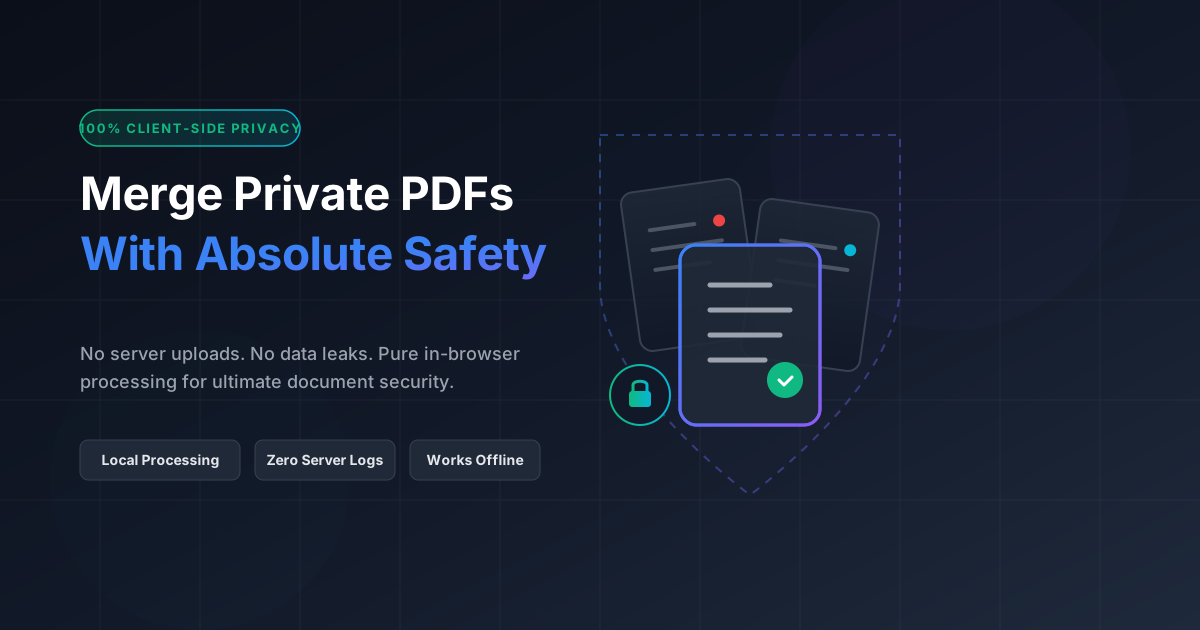
Quick Answer: To safely merge PDFs containing private data, avoid traditional online converters that upload your files to external servers. Instead, use a client-side tool like DumPDF that processes your documents entirely in-browser and offline, ensuring your sensitive data never leaves your device.
In today’s digital-first workspace, the PDF (Portable Document Format) is the gold standard for sharing contracts, financial statements, medical records, and legal agreements. Frequently, professionals and everyday users need to combine multiple reports, receipts, or chapters into a single cohesive file.
However, when those documents contain highly sensitive, private, or proprietary data, a simple task like merging files becomes a high-stakes security decision. Standard online PDF tools require you to upload your files to their remote servers. This exposes your private information to potential data breaches, unauthorized third-party access, and compliance violations (such as GDPR, HIPAA, or CCPA).
This comprehensive guide explores the hidden security risks of traditional online PDF mergers and provides a step-by-step roadmap on how to merge PDF documents containing private data with absolute safety.
The Hidden Risks of Standard Online PDF Mergers
When you search for “merge PDFs online” on Google, you are met with hundreds of free tools. While convenient, the vast majority of these platforms operate on a server-side architecture. This means:
- File Uploads: Your documents are transmitted over the internet to a remote server owned by the service provider.
- Data Retention Policies: Even if a site claims to “delete files after 1 hour,” your data still resides on an external server for a window of time. If that server is compromised during that window, your data is compromised.
- Vague Terms of Service: Many free tools monetize their platforms by analyzing user data or sharing aggregated metadata with advertisers and partners.
- Compliance Violations: For professionals handling client data, uploading unencrypted PDFs containing personally identifiable information (PII) to a third-party server can violate federal and international privacy laws.
If you are dealing with tax returns, bank statements, medical records, or corporate intellectual property, standard server-side tools are a massive security liability.
The Solution: 100% Client-Side, Offline Processing
To eliminate the risk of data leaks, you must use tools that utilize client-side processing.
What is Client-Side Processing?
Unlike traditional web tools, client-side applications perform all computational work directly inside your device’s web browser (using modern web technologies like WebAssembly and JavaScript).
When you use a client-side tool like DumPDF:
- Zero Uploads: Your PDF files are never sent over the internet.
- 100% Offline Capability: You can literally disconnect your Wi-Fi or Ethernet cable, drag and drop your PDFs, and the tool will still merge them instantly.
- Absolute Privacy: Because your files never leave your computer, there is zero risk of server-side data breaches, hacking, or unauthorized data scraping.
This approach combines the seamless convenience of a web app with the ironclad security of offline desktop software.
How to Safely Merge Private PDFs: A Step-by-Step Guide
Merging your sensitive documents securely is straightforward when utilizing DumPDF’s privacy-first architecture. Follow these simple steps:
Step 1: Prepare Your Files
Before merging, organize the files you want to combine in a local folder on your computer. Ensure they are named clearly so you can easily arrange them in the correct sequence.
Step 2: Navigate to the Secure Merge Tool
Open your web browser and go to the DumPDF Merge PDF tool. Because the tool runs entirely in your browser, your local system resources (RAM and CPU) will handle the merging process.
Step 3: Go Offline (Optional but Reassuring)
If you want absolute peace of mind, turn off your internet connection. Disable your Wi-Fi or unplug your network cable. You will notice that the DumPDF interface remains fully functional.
Step 4: Drag and Drop Your PDFs
Select your private PDF files and drag them into the designated upload area. You can also click to browse your local storage and select them manually.
Step 5: Arrange and Merge
Reorder the pages or documents to your liking. Once you are satisfied with the sequence, click the Merge button. Within milliseconds, the browser compiles the files into a single document.
Step 6: Download Your Merged PDF
Save the newly combined PDF directly to your local drive. The entire process occurs locally, leaving no trace on any external server.
Pro-Tip: Secure Your Sensitive Documents Further
Merging is often just one step in a secure document workflow. If your files contain highly classified information, you should take extra precautions before sharing the final merged document:
- Redact Sensitive Information: If your files contain Social Security numbers, credit card details, or private names, you should redact PDF content permanently before sending it to third parties. Simple black boxes drawn over text in standard editors can often be highlighted and copied; true redaction permanently strips the underlying metadata.
- Password Protect: Add an extra layer of defense by encrypting your merged PDF with a strong password. This ensures that even if the file is intercepted or sent to the wrong email address, unauthorized users cannot open it.
- Apply Watermarks: If you are sharing drafts or proprietary business plans, overlaying a custom watermark can deter unauthorized distribution and leakage.
Why DumPDF is the Safest Choice for Professionals
DumPDF was built with a privacy-first ethos. Whether you are a lawyer handling confidential court filings, a medical professional managing patient charts, or an individual organizing personal tax documents, DumPDF ensures your data remains exclusively yours.
- No Registration Required: You do not need to create an account, provide an email address, or input personal details to use the platform.
- No File Size or Count Limits: Process large documents swiftly without hitting arbitrary paywalls.
- Cross-Platform Compatibility: Works seamlessly on Windows, macOS, Linux, iOS, and Android without requiring any software installations.
By transitioning from server-side PDF tools to client-side alternatives, you eliminate the weakest link in your document security chain. Protect your private data today by choosing smart, local-first web utilities.
Help Keep DumPDF 100% Free & Private
Zero server uploads • No accounts • No trackers