How to Combine PDFs Offline Securely: A Step-by-Step Guide
Published on June 16, 2026
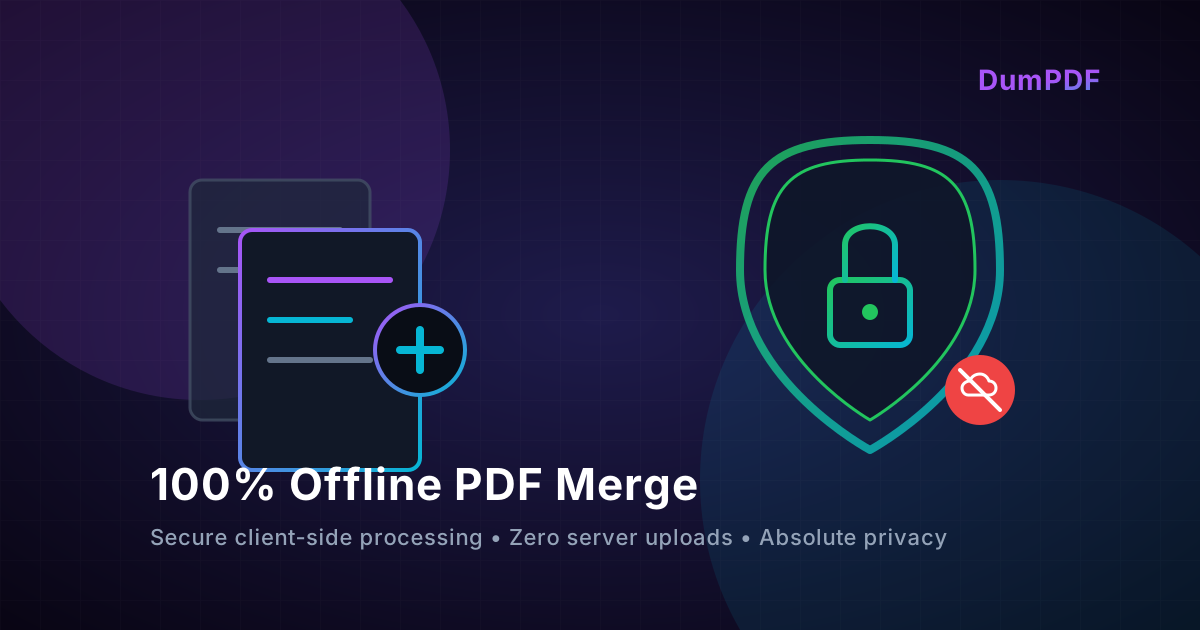
Quick Answer: To combine multiple PDFs securely without an internet connection, use a 100% client-side tool like DumPDF or native offline applications. These tools process files directly in your browser or device memory, ensuring your sensitive documents are never uploaded to an external server.
In today’s digital-first workspace, the PDF is the universal standard for sharing reports, contracts, financial statements, and personal identity documents. Frequently, we find ourselves needing to consolidate multiple documents into a single, cohesive file.
However, a major concern looms over this common task: data privacy.
Most free online PDF utilities require you to upload your files to their remote servers. For businesses handling proprietary data, or individuals managing tax forms and medical records, this upload process represents an unacceptable security risk.
In this comprehensive guide, we will explore how to merge PDF files securely without an internet connection, explaining the technology behind offline processing and why client-side execution is the ultimate shield for your data.
The Hidden Security Risks of Server-Based PDF Tools
When you use a standard online PDF merger, your document travels from your local machine, across the internet, to a third-party server. Once there, the server’s CPU processes the file and generates a download link.
While many reputable services claim to delete your files after an hour, several risks remain:
- Data Interception: If your connection isn’t perfectly secure, or if the platform suffers a Man-in-the-Middle (MITM) attack, malicious actors can intercept your transmission.
- Server Vulnerabilities: Hackers target cloud storage and processing servers. If a PDF utility’s server is breached, your uploaded documents could be leaked.
- Data Retention Policies: Some free tools bury clauses in their Terms of Service allowing them to analyze, store, or train AI models on your uploaded data.
For professionals bound by strict compliance regulations like GDPR, HIPAA, or CCPA, uploading client documents to an unverified cloud server is a direct violation of compliance standards.
The Solution: Client-Side, 100% Offline Processing
The safest way to manipulate sensitive documents is to ensure they never leave your device. This is known as client-side processing.
Historically, offline processing required downloading heavy, expensive desktop software like Adobe Acrobat Pro. Today, modern web technologies have revolutionized this space.
How In-Browser Offline Processing Works
With advanced web technologies like WebAssembly (Wasm) and modern JavaScript libraries, web browsers can now act as powerful, localized engines.
When you use a privacy-first tool like DumPDF:
- Zero Uploads: The application code loads once into your web browser.
- Disconnected Execution: You can literally disconnect your Wi-Fi or pull your ethernet cable, and the tool will still work.
- Local Memory Processing: Your PDFs are read into your computer’s local RAM. The merging, splitting, or editing happens entirely within your browser tab.
- 100% Privacy: Because no data is sent to a server, there is zero risk of data leaks, server-side hacks, or unauthorized data logging.
How to Combine PDFs Offline Securely (Step-by-Step)
There are multiple ways to merge your documents without an internet connection. Let’s look at the most reliable methods.
Method 1: Using DumPDF (In-Browser Offline Tool)
DumPDF is designed specifically for maximum privacy. It combines the convenience of a web application with the absolute security of a local desktop tool.
- Open the Tool: Navigate to the DumPDF Merge tool.
- Disconnect (Optional): To prove the client-side magic, turn off your internet connection. You will notice the tool remains fully functional.
- Drag and Drop: Select the PDF files you wish to combine and drag them into the browser window.
- Arrange Pages: Reorder the documents or individual pages as needed.
- Click Merge: The system will compile your new PDF instantly using your device’s local processor.
- Save Your File: Download the merged PDF directly to your local storage.
Method 2: Using Native OS Tools (Mac & Windows)
If you prefer to use built-in operating system features, both macOS and Windows offer basic offline capabilities.
On macOS (Using Preview):
- Open your first PDF in the native Preview app.
- Go to View > Thumbnails to display the page thumbnails in the sidebar.
- Select the thumbnail where you want to insert the other document.
- Go to Edit > Insert > Page from File.
- Choose the second PDF from your local storage and click Open.
- Go to File > Export as PDF to save your newly combined document.
On Windows (Using Microsoft Edge or Word):
Windows does not have a dedicated, intuitive built-in PDF merger like Mac’s Preview, but you can use Microsoft Word as a workaround:
- Open Microsoft Word offline.
- Go to Insert > Object (drop-down arrow) > Text from File.
- Select the PDFs you want to merge (Word will convert them to editable text, which may alter the formatting of complex layouts).
- Go to File > Save As and select PDF from the dropdown menu.
Note: For complex layouts, native Windows workarounds often distort formatting. A dedicated client-side tool is highly recommended in these scenarios.
Going Beyond Merging: Securing Your Combined Documents
Once you have securely merged your files, you may want to add an extra layer of protection, especially if you plan to email the final document.
To ensure complete end-to-end security, you can protect PDF files with strong AES-256 encryption. Doing this offline ensures that even if your email account is compromised in the future, your sensitive PDF remains locked and unreadable to unauthorized eyes.
Summary: Why Offline is the Only Way for Sensitive Data
| Feature | Standard Online Tools | DumPDF Client-Side Tool |
|---|---|---|
| Data Uploaded to Server | Yes | No (0% Upload) |
| Works Without Internet | No | Yes |
| Risk of Data Interception | High | Zero |
| Compliance Friendly | No (Violates GDPR/HIPAA easily) | Yes (100% Compliant) |
| Processing Speed | Dependent on upload speed | Instant (Uses local hardware) |
By prioritizing offline, client-side tools, you take absolute control over your digital footprint. No servers, no logs, no leaks—just fast, secure, and private document management.
Help Keep DumPDF 100% Free & Private
Zero server uploads • No accounts • No trackers