How to Securely Watermark Confidential PDFs Offline
Published on June 27, 2026
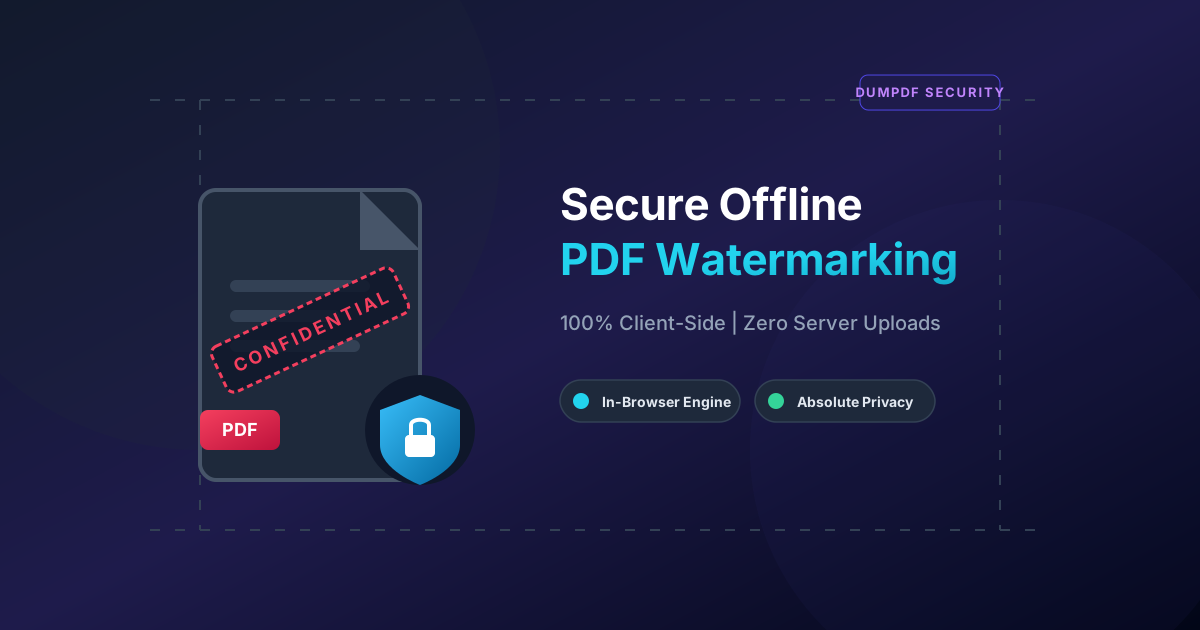
Quick Answer: To securely watermark confidential PDFs offline, use a modern client-side tool like DumPDF. It processes your files directly inside your web browser without uploading them to any external server, ensuring 100% data privacy and zero risk of leaks.
In today’s digital landscape, protecting sensitive business agreements, intellectual property, financial statements, and personal identification documents is more critical than ever. Watermarking is one of the most effective ways to establish ownership, indicate status (such as “DRAFT” or “CONFIDENTIAL”), and deter unauthorized distribution.
However, standard online PDF tools present a massive security risk. When you upload a document to a typical cloud-based PDF converter, your file is transmitted to an external server, stored, processed, and then sent back. For highly confidential documents, this workflow is a compliance nightmare.
Fortunately, you can now add watermark to PDF documents securely offline using advanced, client-side browser technology. In this guide, we will explore why offline-first processing is the gold standard for PDF security and how you can apply it to your workflow today.
The Hidden Security Risks of Cloud-Based PDF Tools
Most users don’t realize that standard “free online PDF editors” are data traps. When you click “Upload File,” your document travels across the internet to a third-party server. This exposes your data to several vulnerabilities:
- Server Breaches: If the service provider’s cloud infrastructure is compromised, your sensitive PDFs could be leaked.
- Data Retention Policies: Many free tools store your files on their servers for hours, days, or even indefinitely under vague terms of service.
- Regulatory Non-Compliance: Uploading protected health information (PHI) or personally identifiable information (PII) to unverified servers can violate strict regulatory frameworks like GDPR, HIPAA, and CCPA.
For true security, confidential documents must never leave your physical machine.
The Solution: Client-Side, In-Browser Offline Processing
Thanks to modern web technologies like WebAssembly (Wasm) and advanced client-side JavaScript, you no longer need to choose between the convenience of a web tool and the security of offline desktop software.
Tools like DumPDF leverage client-side processing. When you use our platform:
- Your PDF files are never uploaded to a server.
- The file processing code runs directly within your web browser’s local sandbox.
- Your computer’s local CPU and memory perform the actual watermarking calculations.
- You can even disconnect your internet connection entirely after loading the page, and the tool will still function perfectly.
This approach guarantees 100% privacy, zero data leaks, and absolute peace of mind.
Step-by-Step: How to Add a Watermark to a PDF Securely Offline
Applying a secure watermark to your confidential documents is straightforward and requires no complex software installations. Follow these simple steps:
Step 1: Open the Offline-First Watermark Tool
Navigate to the secure, client-side watermarking tool on your browser. Because the tool operates entirely on your local machine, you will notice that loading times are incredibly fast.
Step 2: Load Your PDF Document
Drag and drop your confidential PDF into the designated area. Because there is no file upload occurring, the document loads instantly into your browser’s local memory.
Step 3: Customize Your Watermark
Configure your watermark settings to suit your document’s security requirements:
- Text Watermarks: Type in standard indicators like CONFIDENTIAL, INTERNAL USE ONLY, DO NOT COPY, or your organization’s name.
- Image Watermarks: Upload a clean PNG logo or custom stamp.
- Styling & Position: Adjust the font size, opacity (transparency), rotation angle, and layer position (either behind or on top of the text).
Step 4: Apply and Save Locally
Click the process button. Your browser will instantly render the watermark onto the PDF pages. Once completed, download the watermarked PDF directly to your local drive. At no point in this loop did your data travel across the web.
Key Benefits of Offline PDF Manipulation for Professionals
For legal teams, financial analysts, healthcare workers, and enterprise professionals, offline-first tools are a necessity.
1. Total Compliance with Security Regulations
Under regulations like GDPR, transferring client data to unauthorized third-party servers can result in massive fines. Local processing keeps your data pipeline compliant by keeping the data entirely localized.
2. Speed and Efficiency
Because there is no upload or download latency, processing large, multi-page PDFs happens in a fraction of a second. You are only limited by your local device’s hardware speed.
3. Independence from Internet Connectivity
Need to work on sensitive files while traveling, on a flight, or in an area with poor connectivity? Since the engine runs in your browser cache, you can watermark, rotate, or protect PDF files completely offline.
Pairing Watermarks with Extra Security Measures
While watermarks are great for visual protection, they should be part of a multi-layered security strategy for highly sensitive PDFs:
- Password Protection: Always encrypt your watermarked documents. Adding an owner password prevents unauthorized users from easily removing or editing the watermark you just placed.
- Redaction: If your document contains social security numbers, credit cards, or private contact details, ensure you permanently redact those areas before distribution.
- Metadata Removal: PDFs often store hidden metadata containing author names, creation dates, and edit histories. Ensure your processing tool strips this metadata for maximum security.
Conclusion
Securing your business intelligence and personal documents shouldn’t require compromising your data privacy. By choosing client-side, offline-first tools like DumPDF, you get the speed and accessibility of a web app with the uncompromising security of a local desktop application.
Protect your workflow, safeguard your confidential information, and ensure your files stay exactly where they belong: in your hands.
Help Keep DumPDF 100% Free & Private
Zero server uploads • No accounts • No trackers