How to Remove Sensitive Metadata from PDFs Locally
Published on June 5, 2026
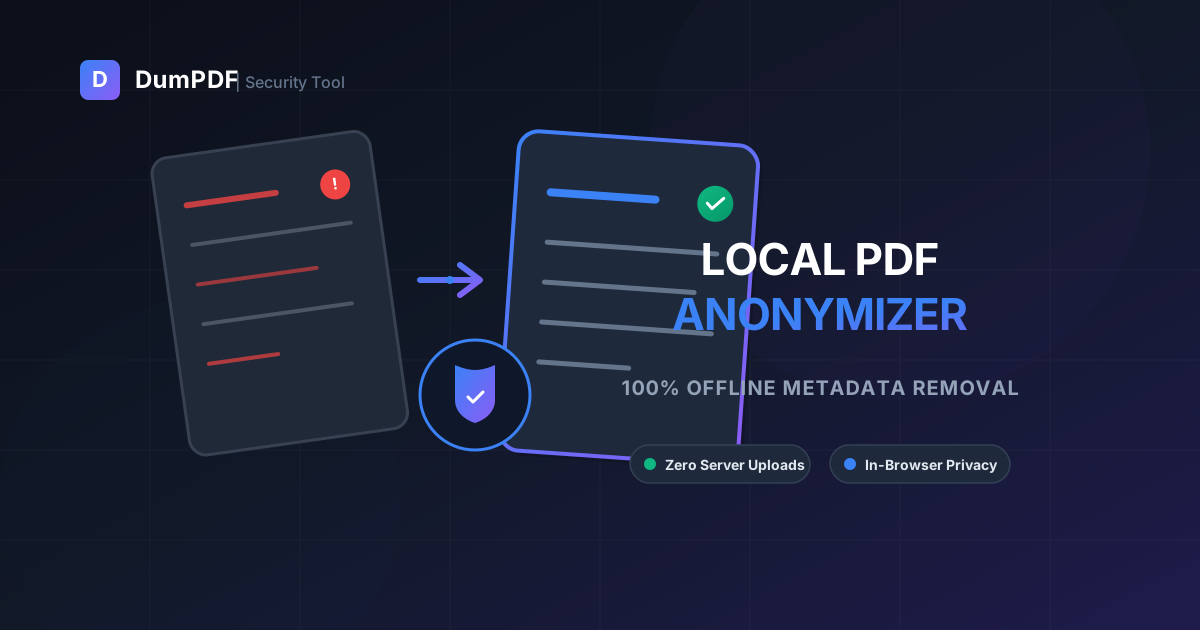
Quick Answer: To remove sensitive metadata from a PDF locally, you can use secure, offline client-side tools that process files directly in your browser without uploading them to any external server. This instantly strips hidden information like author names, creation dates, edit histories, and software signatures, ensuring 100% data privacy.
When you share a PDF document, you are sharing much more than just the visible text and images on the page. Hidden deep within the file’s code lies a digital fingerprint known as metadata.
Metadata can reveal your full name, your organization, the exact software you used, your operating system, creation and modification dates, and even the GPS coordinates of where an embedded image was taken. For professionals handling legal documents, financial reports, or proprietary business data, leaving this information intact is a major security risk.
In this comprehensive guide, we will walk you through why PDF metadata is a vulnerability and provide a step-by-step guide on how to remove it locally and offline to guarantee absolute data privacy.
Why Online PDF Converters Present a Privacy Risk
If you search for “remove PDF metadata” online, you will find dozens of free web-based tools. However, almost all of these traditional tools require you to upload your document to their cloud servers.
Once your file leaves your local machine:
- You lose control of your data: You have no real way of knowing if the server permanently deletes your file or stores it in a cache.
- Data breaches are a threat: If the platform’s servers are compromised, your sensitive documents could be exposed.
- Compliance violations: Uploading client or patient data to third-party servers often violates strict regulatory frameworks like GDPR, HIPAA, or CCPA.
The Solution: Client-Side, In-Browser Processing
The safest way to handle PDF manipulation is by using tools that operate purely client-side.
Tools like DumPDF utilize modern web technologies (such as WebAssembly and JavaScript) to process your files directly inside your browser’s sandbox environment. Your files are never uploaded to a server; the processing happens locally on your own CPU. You can even load the page, disconnect your internet entirely, and the tools will continue to work flawlessly.
What Kind of Metadata is Hidden in Your PDF?
Before stripping metadata, it helps to understand what you are removing. PDFs store metadata in two primary areas:
- Document Information Dictionary (Info Dict): The classic metadata format containing basic fields like Author, Title, Subject, Creator (the application that generated the PDF), and Creation/Modification Dates.
- Extensible Metadata Platform (XMP): A more modern, XML-based metadata format used by Adobe. XMP can store complex schemas, including edit histories, rights management info, and details about the specific devices (like cameras or scanners) used to create the document’s assets.
Step-by-Step: How to Remove Metadata Locally
Here are the most reliable, secure ways to clean your PDF files locally without risking your data.
Method 1: Using DumPDF’s Secure, Client-Side Tools
For a zero-install, 100% private solution, you can use DumPDF’s offline-first suite. Because all operations are executed in your local browser cache, your documents remain entirely yours.
- Navigate to the tool: Open your browser and go to the DumPDF utility website.
- Load your document: Drag and drop your PDF into the processing area.
- Local Processing: The system reads the PDF structure locally using your browser’s engine.
- Strip Metadata & Download: Click the process button. The application instantly generates a clean copy of your PDF with all XMP and Info Dict metadata fields completely cleared.
If you need to hide visible information on the page as well as hidden metadata, you can use our tool to redact PDF files completely offline.
Method 2: Using Adobe Acrobat Pro (Offline Mode)
If you have a paid subscription to Adobe Acrobat Pro, you can use its built-in sanitization features locally.
- Open your PDF in Adobe Acrobat Pro.
- Go to the Tools menu and select Redact.
- In the Redact toolbar, click on Sanitize Document.
- A dialog box will appear asking if you want to remove metadata, hidden text, and other invisible content. Click OK.
- Save your document under a new name to preserve your original copy.
Method 3: Using ExifTool (For Advanced Users)
For developers, system administrators, or power users, ExifTool is a free, open-source command-line application for reading, writing, and modifying meta-information in a wide variety of files.
- Download and install ExifTool for Windows, macOS, or Linux.
- Open your terminal or command prompt.
- Run the following command to strip all metadata from your PDF:
exiftool -all= -overwrite_original secure_document.pdf - This command clears all standard tags and overwrites the original file locally.
Going Beyond Metadata: Total Document Security
Removing metadata is only the first step in securing your digital files. If you are preparing documents for public release or legal discovery, consider these additional local security measures:
- Password Encryption: For an extra layer of security, you can protect PDF documents by adding high-strength user and owner passwords. This restricts unauthorized viewing, printing, or copying.
- Visual Redaction: Simply drawing a black box over sensitive text does not delete the underlying characters. Ensure you use a true redaction tool that physically deletes the underlying text vectors from the PDF code.
- Flattening Files: Flattening your PDFs merges form fields, annotations, and layers into a single, uneditable image layer, preventing others from recovering previous edits.
Conclusion
In an era where data privacy is paramount, relying on cloud-based servers to process sensitive documents is an unnecessary risk. By utilizing local, client-side technologies like DumPDF, or native offline software, you can guarantee that your sensitive PDF metadata is permanently destroyed—without your files ever leaving your computer.
Keep your workflows secure, compliant, and private by making local PDF processing your default standard.
Help Keep DumPDF 100% Free & Private
Zero server uploads • No accounts • No trackers