How to Digitally Sign PDFs in Your Browser Securely
Published on May 27, 2026
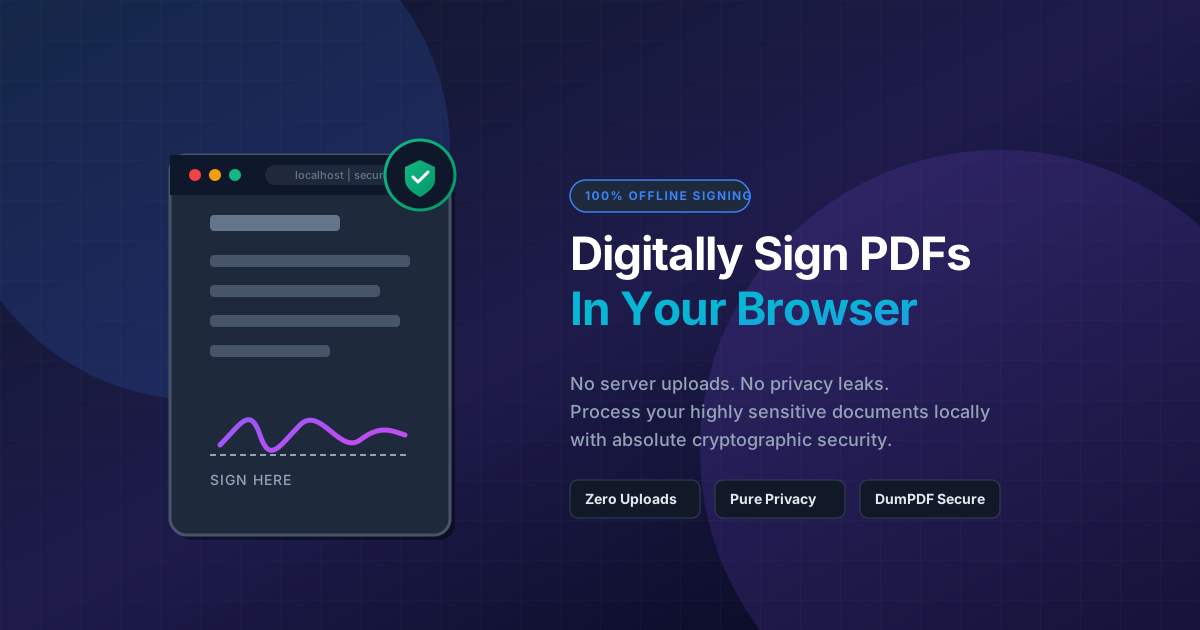
Quick Answer: To digitally sign a PDF in your browser securely, use a client-side tool like DumPDF that processes files locally on your device. This ensures your sensitive documents are never uploaded to an external server, providing 100% privacy and zero risk of data leaks.
In today’s fast-paced digital economy, printing, signing, and scanning physical documents is a relic of the past. Whether you are finalizing a business contract, signing a lease agreement, or approving an invoice, digital signatures have become the standard.
However, as the demand for quick document signing has grown, so too have the security risks. Most online PDF tools require you to upload your highly sensitive files to their remote servers. This exposes your personal data, financial details, and confidential agreements to potential server breaches, data leaks, and unauthorized third-party access.
In this comprehensive guide, we will explore how you can safely and quickly sign PDF online directly within your web browser—without sacrificing your privacy or compromising your security.
What is an Electronic Signature vs. a Digital Signature?
Before diving into the “how-to,” it is crucial to understand the distinction between an electronic signature (e-signature) and a digital signature. While often used interchangeably, they serve different levels of security and compliance:
- Electronic Signature (E-Signature): This is a broad term that refers to any electronic sound, symbol, or process attached to a contract or document to show intent to sign. Examples include a typed name, an uploaded image of your handwritten signature, or a signature drawn with a mouse or touchscreen.
- Digital Signature: A highly secure, specific type of e-signature that uses cryptographic algorithms to bind a digital certificate (PKI - Public Key Infrastructure) to the document. It provides proof of origin, identity, and status of an electronic document, ensuring that the content has not been altered since it was signed.
For everyday business agreements, NDAs, and personal forms, a secure in-browser electronic signature is highly efficient, legally binding in most jurisdictions (such as under the ESIGN Act in the US and eIDAS in Europe), and incredibly easy to apply.
The Hidden Security Risks of Traditional Online PDF Signers
When you search for “sign PDF online” on Google, you are met with dozens of free web utilities. While convenient, the vast majority of these platforms operate on a cloud-upload model. Here is what happens behind the scenes:
- You upload your PDF to their remote server.
- The server processes the file, renders it, and allows you to apply your signature.
- The signed file is stored on their server until you download it (and sometimes long after).
This workflow introduces significant vulnerabilities:
- Data Breaches: If the service provider’s server is compromised, your signed contracts, financial statements, or identity documents could fall into the hands of malicious actors.
- Compliance Violations: Uploading sensitive customer or patient data to unauthorized third-party servers can violate strict regulatory frameworks like GDPR, HIPAA, or CCPA.
- Data Harvesting: Some “free” tools monetize your data by scanning documents or tracking user behavior.
Enter Client-Side Processing: The Safest Way to Sign PDFs
The solution to these security concerns is client-side, offline processing. This is the core philosophy behind DumPDF.
Instead of sending your document to an external server, client-side tools leverage modern browser technologies (like WebAssembly and local JavaScript APIs) to run the entire PDF manipulation engine directly within your browser sandbox.
Why Client-Side Processing is a Game-Changer:
- 100% Privacy: Your files never leave your computer. You can literally load the webpage, turn off your Wi-Fi connection, and successfully sign your document completely offline.
- Zero Data Leaks: Because there are no server uploads, there is zero risk of server-side data breaches, unauthorized logs, or document retention.
- Instant Speed: Without the need to upload or download large files to and from a remote server, processing is instantaneous.
Step-by-Step Guide: How to Sign a PDF in Your Browser with DumPDF
Signing your document locally is incredibly straightforward. Follow these simple steps to sign your PDF securely in seconds:
Step 1: Open the Local Signing Tool
Navigate to the secure, client-side signing tool on your browser. Because the tool runs entirely on your local machine, the interface loads instantly.
Step 2: Import Your PDF
Drag and drop your PDF file into the browser window or click the upload button to select it from your local storage. Remember: the document is merely loaded into your browser’s active memory; it is not uploaded to any external server.
Step 3: Create Your Signature
You have multiple secure options to generate your electronic signature:
- Draw: Use your mouse, trackpad, or stylus to draw your signature naturally.
- Type: Type your name and choose from a selection of professional, cursive-style fonts.
- Upload: Upload a clean image (PNG or JPEG) of your physical signature.
Step 4: Place and Resize
Position your signature on the designated signature line. You can easily resize, move, or duplicate the signature to fit multiple pages or fields within the document.
Step 5: Save and Export
Click the export button to generate your newly signed PDF. The file is compiled locally in your browser and saved directly to your Downloads folder.
Best Practices for Securing Your Signed Documents
Once you have successfully signed your document, you should take extra measures to protect its integrity, especially if it contains highly confidential information:
- Restrict Editing: To prevent unauthorized parties from tampering with your signature or altering the terms of the contract, you should protect PDF files with a strong password or restrict editing permissions.
- Flatten the PDF: Flattening your PDF ensures that your signature becomes a permanent graphical element of the document background, making it much harder for someone to extract, copy, or move the signature image.
- Keep Software Updated: Always use a modern, updated web browser (such as Chrome, Firefox, Safari, or Edge) to ensure you have the latest security patches protecting your browser sandbox.
Why Choose DumPDF for Your PDF Workflow?
DumPDF is designed from the ground up to prioritize user privacy and data sovereignty. Beyond signing documents, DumPDF offers a suite of local tools that allow you to manage your documents without ever exposing your files to the cloud.
- No Registration Required: Start working immediately without giving away your email address or personal details.
- No File Size Limits: Since processing happens on your local device’s hardware, you are not restricted by arbitrary cloud upload limits.
- Cross-Platform Compatibility: Whether you are on Windows, macOS, Linux, iOS, or Android, as long as you have a modern web browser, you can securely manage your PDFs.
By shifting your document workflows to local, client-side tools, you take control of your digital security and ensure your professional and personal agreements remain strictly confidential.
Help Keep DumPDF 100% Free & Private
Zero server uploads • No accounts • No trackers