How to Digitally Sign PDFs in Your Browser Securely
Published on May 21, 2026
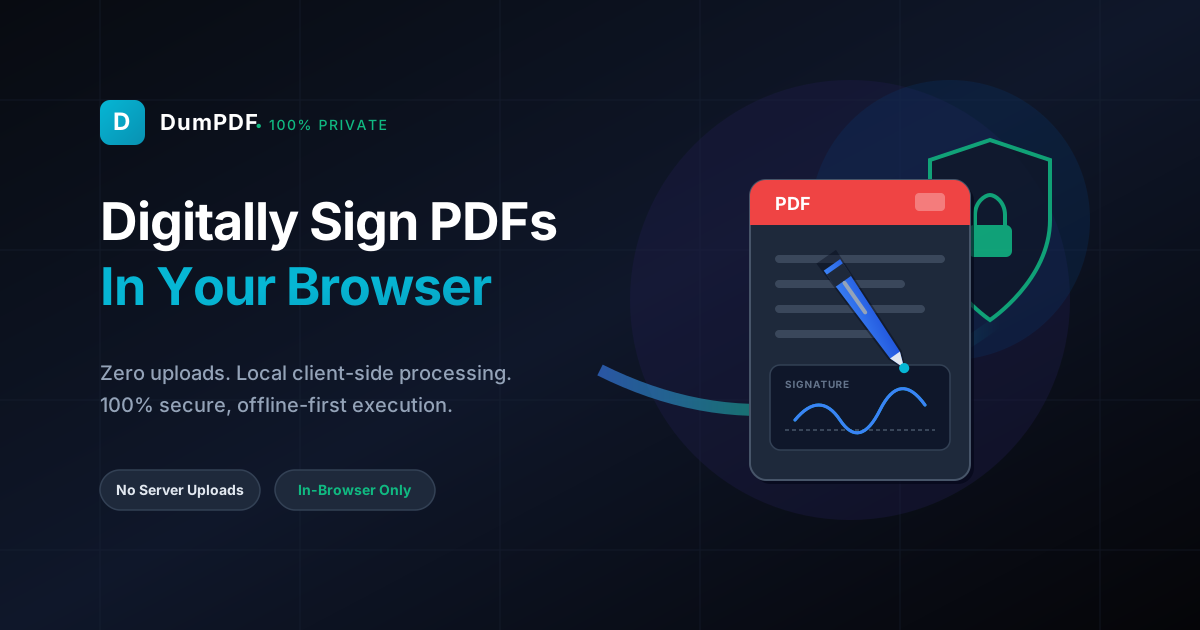
Quick Answer: You can digitally sign PDFs directly in your browser using secure client-side tools like DumPDF. By processing your files entirely in-browser, your sensitive documents never upload to an external server, ensuring 100% privacy, zero data leaks, and instant performance.
In today’s fast-paced digital economy, physical paperwork is rapidly becoming a relic of the past. From freelance contracts and lease agreements to enterprise-level corporate resolutions, we rely on digital signatures to keep business moving.
However, the convenience of signing documents online has historically come with a significant catch: privacy. Most online PDF tools require you to upload your highly sensitive files (often containing social security numbers, financial details, and personal addresses) to their remote servers.
Fortunately, modern web technology has evolved. Today, you can safely, quickly, and privately sign PDF files directly inside your web browser without ever exposing your data to the cloud. This comprehensive guide will walk you through how browser-based signing works, why traditional server-based tools pose a massive security risk, and how to execute 100% private signatures locally.
The Evolution of Signing: E-Signatures vs. Digital Signatures
Before diving into the “how-to,” it is essential to understand what happens when you sign a document online. While people often use the terms interchangeably, there is a technical difference between electronic signatures and digital signatures:
- Electronic Signature (E-Signature): This is a broad term that refers to any electronic sound, symbol, or process attached to a contract to show intent to sign. Examples include typing your name, uploading an image of your handwritten signature, or drawing your initials with a mouse or touchscreen.
- Digital Signature: This is a highly secure subset of electronic signatures. It uses cryptographic algorithms (Public Key Infrastructure, or PKI) to bind a digital certificate to the document. This mathematically proves that the document has not been altered or tampered with since the signature was applied.
For everyday business transactions, standard electronic signatures applied via a web browser are legally binding under frameworks like the ESIGN Act (United States) and eIDAS (European Union), provided they meet basic consent and audit-trail criteria.
The Hidden Security Risks of Cloud-Based PDF Signers
When you search Google for “how to sign a PDF online,” you are bombarded with hundreds of web-based tools. Almost all of them operate on a server-side architecture. Here is what happens behind the scenes with those tools:
- You upload your contract or document to the provider’s server.
- The server processes the document and displays it on your screen.
- You apply your signature.
- The server generates the signed PDF and hosts it for you to download.
Why is this a problem?
- Data Breaches: If the service provider’s servers are hacked, your signed contracts, legal filings, and personal identification documents could be stolen.
- Data Retention Policies: Many “free” tools retain your documents on their servers for days, weeks, or even indefinitely. You have no real control over how your files are stored, archived, or deleted.
- Compliance Violations: If you handle medical records (HIPAA), financial data (GLBA), or European citizen data (GDPR), uploading unencrypted documents to third-party servers can trigger severe regulatory compliance violations.
The Modern Alternative: 100% Client-Side, Offline Processing
To eliminate these security vulnerabilities, DumPDF utilizes a local-first, client-side execution model.
Instead of sending your document to a remote server, modern web APIs (such as WebAssembly and HTML5 Canvas) allow your browser to do all the heavy lifting locally on your device.
When you use DumPDF to sign, edit, or modify your documents, your files never leave your computer. The website loads the application code into your browser’s temporary memory, and the entire signing process occurs right there. You could literally turn off your internet connection mid-process, and the tool would still successfully sign and save your PDF.
This guarantees:
- 100% Privacy: No one, not even the creators of DumPDF, can see, access, or store your documents.
- Zero Data Leaks: Because there is no server-side database storing your documents, there is nothing for hackers to breach.
- Blazing Fast Speeds: You do not have to wait for slow uploads or downloads. Processing happens instantly, leveraging your device’s local CPU power.
Step-by-Step Guide: How to Sign a PDF in Your Browser
Signing your PDF locally in your browser is incredibly straightforward. Here is how to do it securely:
Step 1: Open the Local PDF Signer
Navigate to the DumPDF signature tool. Because the tool runs entirely in your browser, you will notice that the interface loads almost instantly.
Step 2: Load Your PDF Document
Drag and drop your PDF file into the secure browser window, or click to select the file from your local hard drive. Remember, your file is not uploading; it is simply being loaded into your browser’s local memory.
Step 3: Create Your Signature
You have three highly flexible ways to apply your signature:
- Draw: Use your mouse, trackpad, or stylus (on mobile or tablet) to draw your actual signature.
- Type: Enter your name and select from several elegant, cursive-style fonts that mimic a handwritten signature.
- Upload: If you already have a clean scan or photo of your physical signature, you can upload it as a PNG or JPEG to place directly onto the document.
Step 4: Position and Scale
Click on your newly created signature to place it onto the document. You can drag it to the correct signature line and use the corner handles to scale it to the perfect size.
Step 5: Save and Export
Once you are satisfied with the placement, click “Sign” or “Download”. The browser will instantly compile the changes and save the newly signed PDF directly to your system’s download folder.
Upgrading Your Document Security Post-Signature
Applying your signature is often just the first step in preparing a professional document. To ensure your signed contracts remain completely tamper-proof and professional, consider taking these additional steps:
- Encrypt Your Signed Files: To ensure that only authorized recipients can view your signed contract, you should protect PDF files with a strong password. This adds an extra layer of defense, especially if you are sending the document via unencrypted email.
- Flattening the PDF: When you sign a PDF, the signature is often placed as an interactive element or annotation. To prevent anyone from easily moving, editing, or deleting your signature, you can convert the pages to images and back to a PDF, effectively “flattening” the document so the signature becomes a permanent part of the background layer.
Conclusion: Take Control of Your Document Privacy
You should never have to compromise your digital privacy for the sake of convenience. Digitally signing contracts and agreements is a necessity of modern professional life, but uploading those documents to vulnerable third-party servers is not.
By leveraging client-side, in-browser processing tools like DumPDF, you get the best of both worlds: the seamless convenience of a web-based tool combined with the ironclad security of offline, local processing. Keep your sensitive documents safe, keep your workflow fast, and start signing your PDFs securely in your browser today.
Help Keep DumPDF 100% Free & Private
Zero server uploads • No accounts • No trackers