How to Add Page Numbers to PDF Securely Offline
Published on June 7, 2026
Quick Answer: To add page numbers to PDF documents securely offline, use client-side web tools that process files entirely within your local browser. This ensures your sensitive documents are never uploaded to an external server, providing 100% privacy and complete protection against data leaks.
In today’s digital-first workplace, PDF documents are the standard for sharing reports, legal contracts, academic papers, and financial statements. Often, these documents require structured page numbering to maintain readability, professional formatting, and compliance.
However, when it comes to editing sensitive or confidential files, a massive security challenge arises: How do you add page numbers to a PDF without exposing your data to third-party servers?
Many popular online PDF tools require you to upload your files to their cloud servers. For businesses handling intellectual property, medical records, or personal data, this upload process represents a significant security and compliance risk.
In this comprehensive guide, we will explore how to add page numbers to your PDFs securely and offline, leveraging modern browser technology that keeps your files entirely on your local machine.
The Hidden Security Risks of Cloud-Based PDF Tools
When you search for a quick way to edit a PDF, dozens of free online tools appear. While convenient, the vast majority of these platforms operate on a server-side architecture. This means:
- Mandatory Uploads: Your document is transferred from your local device to an external cloud server.
- Data Retention Policies: Even if a service claims to delete your files after an hour, those files still exist on their servers temporarily, making them vulnerable to interception or server breaches.
- Compliance Violations: Uploading proprietary or client data to unauthorized third-party servers can violate strict regulatory frameworks like GDPR, HIPAA, or CCPA.
- Lack of Control: Once a file leaves your device, you lose absolute control over who accesses, copies, or stores that information.
For professionals handling sensitive information, using server-side tools is simply not an option. You need a solution that guarantees your files never leave your computer.
The Modern Solution: Client-Side, In-Browser Offline Processing
Fortunately, advancements in web technology have made it possible to edit PDFs locally without installing heavy, expensive desktop software. This is achieved through client-side processing.
With client-side tools, the application runs entirely within your web browser (such as Chrome, Firefox, or Safari) using your computer’s local resources. When you load a tool like DumPDF, the entire processing engine is downloaded directly to your browser.
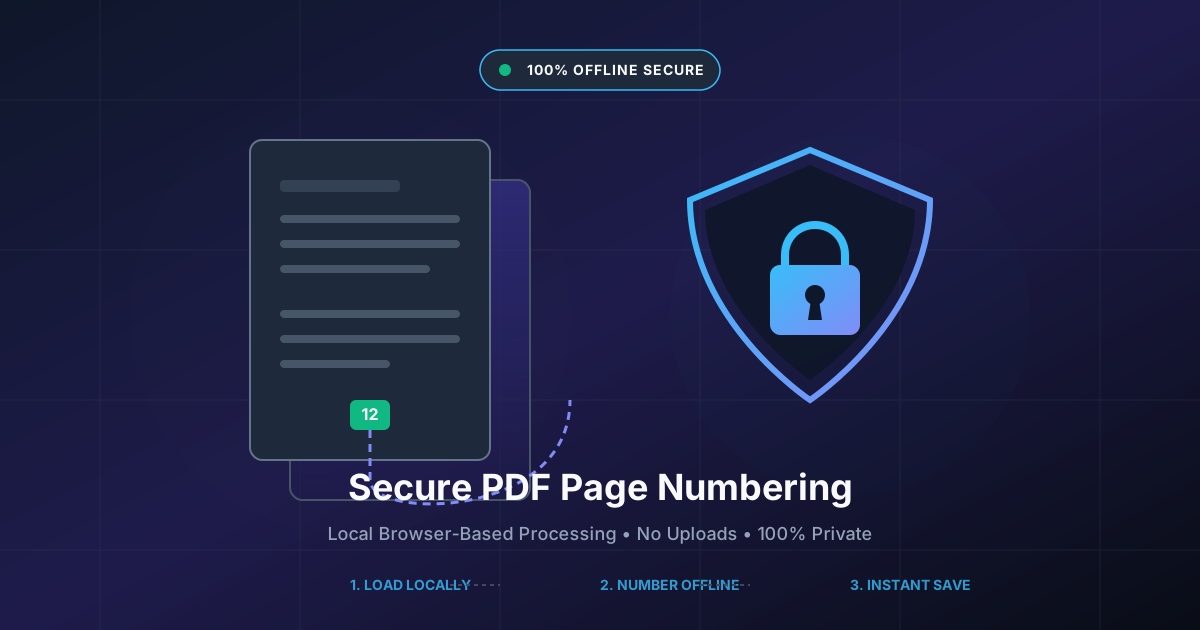
When you use the add page numbers tool, your files are read and modified locally. No data is uploaded to a server.
Key Benefits of Client-Side PDF Editing:
- 100% Privacy: Your files never leave your local device, eliminating the risk of cloud-based data leaks.
- Offline Capability: Once the page is loaded, you can disconnect from the internet entirely and continue editing your PDFs.
- Lightning-Fast Speed: Because there is no upload or download lag, processing happens instantly, powered by your device’s hardware.
- Zero Installation: Unlike traditional offline software (like Adobe Acrobat Pro), you do not need to install bulky applications or manage licensing fees.
Step-by-Step Guide: How to Add Page Numbers to PDF Locally
Adding page numbers to your documents using a secure, client-side tool is incredibly simple. Here is how to do it step-by-step using DumPDF’s offline-first approach:
Step 1: Disconnect from the Internet (Optional)
To prove that the tool is operating entirely offline, you can disconnect your Wi-Fi or unplug your ethernet cable once the page is loaded. The application will continue to function flawlessly.
Step 2: Select and Load Your PDF
Drag and drop your document into the secure interface. Because the tool runs locally, the file loads instantly. There is no progress bar waiting for an upload to complete.
Step 3: Customize Your Page Number Settings
A robust page numbering tool allows you to customize exactly how your numbers look and where they appear:
- Position: Choose where the numbers should reside (e.g., header or footer, aligned left, center, or right).
- Format: Select your preferred style (e.g., “Page 1”, “1 of 10”, or simple digits “1”).
- Font and Size: Match the typography of your document for a polished, professional look.
- Page Range: Exclude cover pages or tables of contents by specifying the exact page where numbering should start.
Step 4: Apply and Save
Click the generate button. The client-side engine compiles the new PDF in milliseconds. Save the document directly to your local drive. Your original file was never exposed to the web, and your edited file is safely stored on your hard drive.
Why DumPDF is the Safest Choice for Professionals
DumPDF was built from the ground up with a security-first philosophy. We believe that document manipulation should be fast, free, and completely private.
Traditional PDF editors either force you into expensive subscriptions or compromise your privacy by processing files on remote servers. DumPDF solves both problems. By leveraging modern WebAssembly and JavaScript libraries, we process everything locally in your browser sandbox.
Whether you need to organize a legal brief, format a corporate report, or protect PDF files with passwords, you can rest assured that your sensitive data remains entirely under your control.
Best Practices for Maintaining Document Security
While using a client-side tool is the most critical step in securing your workflow, you can implement additional habits to keep your documents safe:
- Clear Browser Cache: If you are using a shared or public computer, clear your browser cache and close the browser tabs after completing your work.
- Use Local Encryption: If your PDFs contain highly sensitive information, consider encrypting them with a strong password before distribution.
- Avoid Public Wi-Fi for Sensitive Work: Even when using offline-capable tools, working on unsecured public networks exposes your device to other vulnerabilities. Always use a VPN or secure network when working with sensitive client files.
Conclusion
Adding page numbers to your PDFs does not require you to compromise your data privacy. By transitioning away from server-side cloud tools and embracing modern, client-side offline processors, you can format your documents quickly, efficiently, and with 100% security.
Experience the speed and absolute privacy of local PDF manipulation today. Try our secure, browser-based tools and take full control of your digital document workflow.
Help Keep DumPDF 100% Free & Private
Zero server uploads • No accounts • No trackers