Understanding PDF Encryption & Why Client-Side Tools Are Safer
Published on July 8, 2026
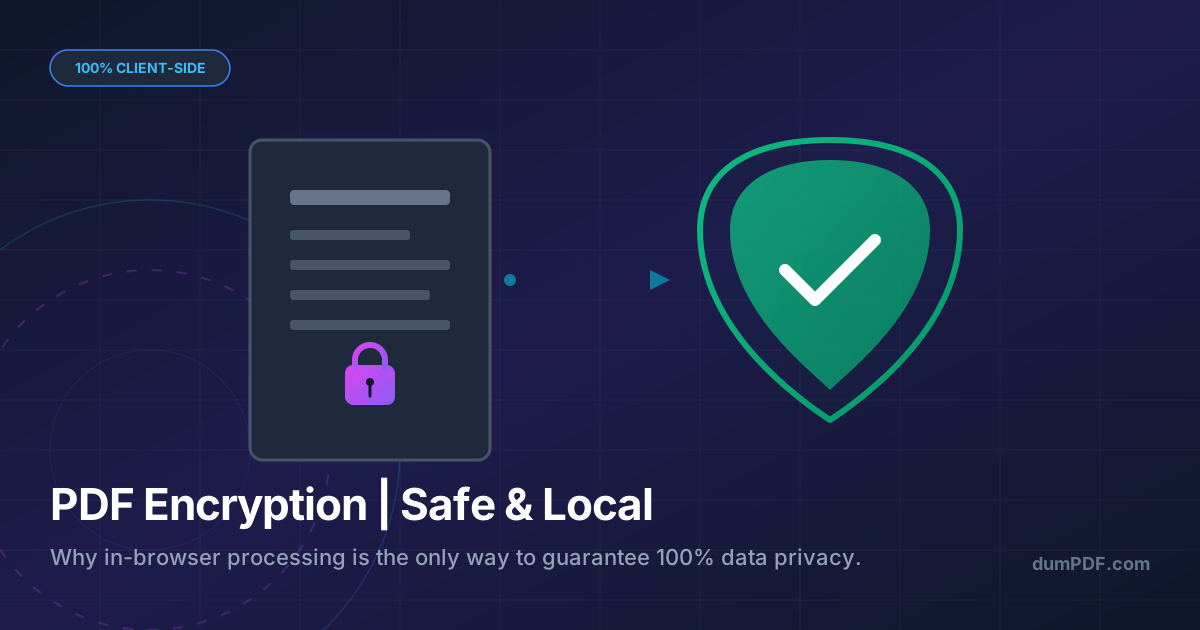
Quick Answer: PDF encryption protects sensitive document data using cryptographic passwords and permissions. While traditional online tools risk exposing your files on external servers, client-side tools process PDFs entirely within your web browser, ensuring your private data never leaves your device.
In an era where data breaches, identity theft, and corporate espionage are at an all-time high, securing your digital documents is no longer optional. For businesses and individuals alike, the Portable Document Format (PDF) is the standard for sharing contracts, financial statements, medical records, and legal agreements.
But how secure are these files, really? And when you use online tools to encrypt, merge, or edit them, are you unwittingly exposing your most sensitive information to third-party servers?
In this comprehensive guide, we will break down how PDF encryption works, expose the hidden security risks of cloud-based PDF processors, and explain why client-side, in-browser tools are the gold standard for modern document privacy.
What is PDF Encryption and How Does It Work?
PDF encryption is a security protocol that scrambles the contents of a PDF file into unreadable ciphertext. To unscramble and view the document, a user must provide the correct cryptographic key—typically in the form of a password.
The PDF specification supports two primary types of passwords:
1. The User Password (Document Open Password)
This password prevents unauthorized users from opening and viewing the file. If you attempt to open a user-password-protected PDF, your PDF reader will prompt you to enter the password before rendering any content.
2. The Owner Password (Permissions Password)
This password restricts what authorized viewers can do with the document once it is open. For example, you can allow a user to read a PDF but prevent them from:
- Printing the document.
- Copying or extracting text and images.
- Modifying or annotating the contents.
- Rotating or reordering pages.
Encryption Standards: AES vs. RC4
Behind these passwords lie complex mathematical algorithms. Older PDFs used RC4 encryption, which is now highly vulnerable to modern hacking techniques. Today, secure PDF tools use Advanced Encryption Standard (AES) with 128-bit or 256-bit keys. AES-256 is the same military-grade encryption standard used by banks and governments worldwide, making it virtually impossible to crack via brute force.
The Hidden Security Risks of Cloud-Based PDF Tools
When you search for a way to protect PDF files online, you are flooded with dozens of free web utilities. While convenient, the vast majority of these platforms operate on a server-side architecture.
Here is what happens behind the scenes when you use a typical cloud-based PDF tool:
- Upload: Your unencrypted, highly sensitive PDF is uploaded from your computer to the provider’s remote server.
- Processing: The remote server processes the file (e.g., applies encryption, compresses it, or converts it).
- Storage: The file is temporarily stored on the server’s hard drive.
- Download: You download the processed file back to your device.
This workflow introduces several critical vulnerability points:
Data Breaches and Server Hacks
If the PDF utility’s servers are compromised by malicious actors, your uploaded documents—containing social security numbers, bank details, or proprietary business data—could be stolen.
Server Logs and Temporary Storage
Even if a service claims to “delete your files after one hour,” there is no way for you to verify this claim. Files can persist in server backups, temporary caches, or error logs long after they were supposedly deleted.
Compliance Violations
For professionals in healthcare (HIPAA), finance (SEC), or European markets (GDPR), uploading raw client data to an unverified third-party server can result in severe legal penalties and compliance violations.
Why Client-Side (In-Browser) Processing is the Ultimate Solution
Fortunately, advances in modern web technology have made server-side uploads completely obsolete. Today, you can use highly sophisticated True Offline PDF Editors: Keep Your Data Private that run entirely inside your web browser.
This is known as client-side processing.
How Client-Side Processing Works
Instead of sending your PDF to a remote server, client-side platforms (like DumPDF) download the necessary processing code (written in JavaScript or WebAssembly) directly to your browser. Your computer’s local CPU does all the heavy lifting.
When you drag and drop a file into a client-side tool, the file never leaves your computer. It is read, modified, and saved locally within your browser’s sandbox environment.
The Security Advantages of Client-Side Tools
- 100% Privacy Guarantee: Because your files are never uploaded to the internet, there is zero risk of interception, server-side data leaks, or unauthorized access.
- Work Offline: Since the processing engine runs in your browser, you can disconnect from the internet entirely and still lock, unlock, compress, or edit your PDFs.
- Instant Performance: You don’t have to wait for large files to upload to a server and download back to your machine. The processing happens instantly at local hardware speeds.
- Zero Footprint: Once you close your browser tab, all traces of the document session are wiped from your system memory, leaving no digital footprint.
How to Manage Your PDF Security Safely
Whether you need to secure a file or remove restrictions from a document you legally own, you should always opt for local processing.
How to Securely Lock a PDF
To protect your sensitive files, use a client-side encryption tool. Choose a strong, unique password (at least 12 characters, mixing uppercase letters, numbers, and symbols) and ensure the tool applies AES-256 encryption.
How to Securely Unlock a PDF
If you have a password-protected file and need to remove its restrictions for editing or printing, you can safely unlock PDF documents using our offline tool. Because the decryption process happens locally in your browser, your secret passwords and raw document contents are never transmitted across the web.
Conclusion: Take Control of Your Document Privacy
Your data is your most valuable asset. When handling sensitive PDF files, relying on cloud-based servers is an unnecessary security gamble. By transitioning to client-side, offline-first utilities like DumPDF, you eliminate the middleman, bypass server vulnerabilities, and ensure that your private documents remain exactly where they belong: in your hands.
Explore our suite of secure, 100% in-browser PDF tools today and experience true document privacy without compromising on speed or simplicity.
Help Keep DumPDF 100% Free & Private
Zero server uploads • No accounts • No trackers