Secure PDF Workflows for Therapists: Protect Patient Privacy
Published on June 20, 2026
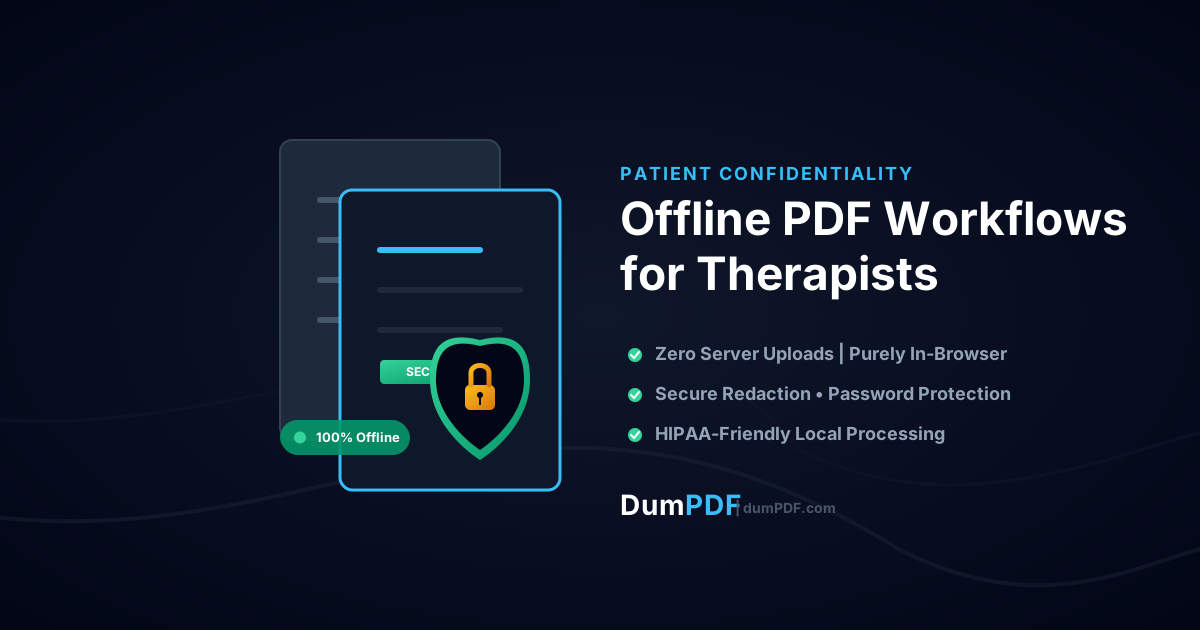
Quick Answer: Therapists can maintain 100% patient confidentiality by using client-side, offline PDF tools that process documents directly within the local browser. This ensures sensitive clinical notes and intake forms are never uploaded to external servers, eliminating the risk of data leaks and cloud breaches.
As a therapist, counselor, or mental health professional, patient confidentiality is the cornerstone of your practice. Every intake form, progress note, clinical assessment, and treatment plan contains highly sensitive Personal Health Information (PHI). Protecting this data is not just an ethical obligation—it is a legal mandate under frameworks like HIPAA (Health Insurance Portability and Accountability Act) and GDPR (General Data Protection Regulation).
However, in our increasingly digital world, managing these documents often requires splitting, merging, or modifying PDF files. Many practitioners turn to free online PDF tools without realizing the massive security risks involved. When you upload a document to a standard cloud-based PDF editor, your patient’s private data is transmitted to an external server, where it may be stored, logged, or exposed to security breaches.
To eliminate this vulnerability, therapists must transition to offline, client-side PDF workflows. Here is a comprehensive guide on how to handle sensitive client documents securely using modern browser-based technologies that keep your data entirely local.
The Hidden Danger of Cloud-Based PDF Tools
Many therapists assume that if a website has a lock icon (HTTPS) in the browser address bar, it is perfectly safe. While HTTPS encrypts the data in transit, it does nothing to protect the data once it reaches the provider’s server.
When you use traditional online PDF utilities, the following occurs behind the scenes:
- File Upload: Your PDF is copied from your local device to the service provider’s cloud server.
- Server-Side Processing: The server opens, modifies, and saves the document.
- Data Retention: Even if a site claims to “delete files after one hour,” those files exist on a third-party server temporarily. Backups, server logs, and temporary caches can retain traces of your patient’s private clinical records indefinitely.
- Compliance Violations: Uploading PHI to a server without a signed Business Associate Agreement (BAA) is a direct violation of HIPAA regulations, exposing your practice to severe financial and legal penalties.
For mental health professionals, this workflow is an unacceptable liability.
The Solution: Purely Client-Side, Offline Processing
Fortunately, advancements in web technology now allow you to manipulate PDFs with the convenience of an online tool but the absolute security of an offline application. This is known as client-side processing.
Tools built on this architecture—such as DumPDF—utilize modern web technologies like WebAssembly and local JavaScript. When you drag and drop a document into the tool:
- The file never leaves your computer.
- No data is uploaded to a remote server.
- All processing (such as merging, splitting, or protecting) happens entirely within your web browser’s local memory.
- You can even disconnect your internet entirely after loading the page, and the tools will continue to function flawlessly.
By using client-side tools, you completely bypass the risk of server-side data leaks, making it the gold standard for maintaining patient confidentiality.
Essential PDF Workflows for Mental Health Professionals
To keep your practice secure, efficient, and compliant, integrate these offline PDF practices into your daily routine:
1. Secure Patient Intake Forms and Assessments
When sharing intake paperwork, diagnostic reports, or billing statements with clients or insurance companies, you must ensure the files cannot be intercepted or modified.
Before emailing any clinical document, you should protect PDF files with password encryption. By applying a strong password locally in your browser, you ensure that only the authorized recipient with the decryption key can view the sensitive clinical content.
2. Anonymizing Case Studies and Peer Reviews
Therapists frequently share case details for clinical supervision, peer consultation, or academic writing. To do this ethically, all identifying details—such as names, addresses, phone numbers, and specific employers—must be completely removed.
Simply drawing a black box over text using a basic PDF viewer does not delete the underlying metadata or searchable text. To safely sanitize your clinical notes, you must permanently redact PDF documents. Doing this via a client-side tool ensures that the sensitive text is stripped out of the file’s code locally, leaving no trace for anyone to uncover.
3. Organizing and Splitting Multi-Page Assessments
During a comprehensive psychological evaluation, you may end up with a single, massive PDF containing intake questionnaires, standardized test results, and medical histories. For clinical clarity, you might need to split this file into individual sections to upload to different parts of your Electronic Health Record (EHR) system.
Using an offline PDF splitter allows you to extract specific pages (e.g., separating the doctor’s referral letter from the patient’s self-report scale) without exposing the diagnostic data to cloud databases.
How to Verify Your PDF Tool is Truly Offline
If you want to test whether your PDF utility is truly operating client-side without transmitting your files to an external server, follow this simple test:
- Open the PDF tool website in your browser.
- Disconnect your device from the internet (turn off Wi-Fi or unplug your ethernet cable).
- Try to merge, split, or protect a PDF file.
- If the tool processes your document successfully while offline, it is a secure, client-side application. If it fails or asks you to reconnect, your data is being sent to a remote server.
Best Practices for Digital Document Management in Therapy
Beyond using secure PDF tools, implement these administrative habits to safeguard your digital practice:
- Implement Strong Password Hygiene: Never use the same password for client PDFs that you use for your email or EHR. Use a secure password manager to generate unique, complex keys.
- Wipe Local Downloads Regularly: If you are working on a shared or home computer, remember that browser downloads are saved locally. Regularly clear your “Downloads” folder of sensitive client files.
- Enable Full-Disk Encryption: Ensure your computer’s hard drive is encrypted (using BitLocker on Windows or FileVault on Mac) so that if your device is lost or stolen, your local PDF files remain unreadable.
Conclusion: Safeguarding Trust in the Digital Space
The therapeutic alliance is built entirely on trust. By taking proactive control of your digital document workflows and choosing offline, client-side utilities over risky cloud-based platforms, you protect your patients, your license, and your professional reputation.
With DumPDF, you get the speed and ease of a modern web application with the ironclad security of a completely offline system. Keep your clinical files where they belong: safely on your own computer.
Help Keep DumPDF 100% Free & Private
Zero server uploads • No accounts • No trackers