Securely Add Page Numbers to PDF Offline: Ultimate Guide
Published on July 4, 2026
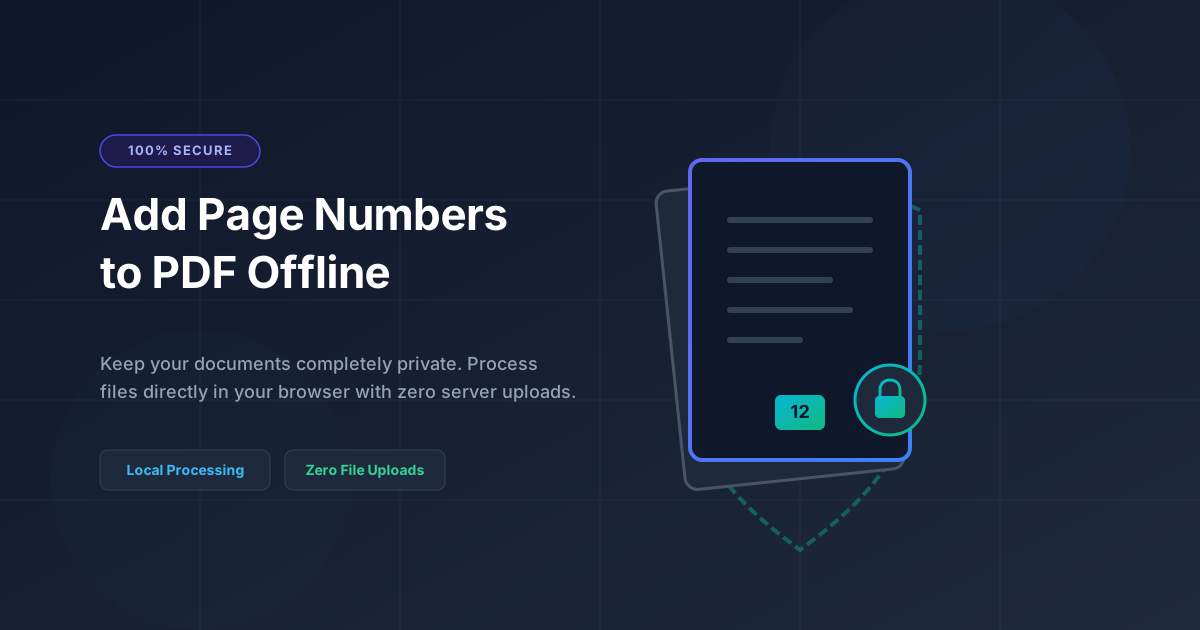
Quick Answer: To add page numbers to PDF documents securely and offline, use a client-side tool like DumPDF that processes files directly in your web browser without uploading them to any external server. This guarantees 100% data privacy and zero risk of information leaks.
Whether you are preparing a legal brief, compiling an academic thesis, or structuring a corporate financial report, page numbers are essential. They provide structure, improve readability, and ensure your readers can navigate your document effortlessly.
However, many users rely on convenient online PDF editors to get the job done. What they do not realize is that traditional online tools require you to upload your files to their external servers. If your PDF contains sensitive personal data, corporate trade secrets, or client information, this upload process introduces severe security vulnerabilities.
In this comprehensive guide, we will explore why offline, client-side PDF manipulation is the gold standard for security and show you exactly how to add page numbers to PDF documents securely offline.
The Hidden Security Risks of Server-Based PDF Tools
When you upload a document to a typical cloud-based PDF editor, your file travels across the internet to a third-party server. Once there, the server processes the document, adds the page numbers, and sends it back to you.
While this seems seamless, it introduces several significant risks:
- Data Retention Policies: Many free online tools retain copies of your uploaded documents on their servers for hours, days, or even permanently under vague terms of service.
- Data Breaches: Cloud servers are prime targets for hackers. If the PDF utility provider suffers a data breach, your confidential documents could be exposed to the public web.
- Compliance Violations: For professionals working under strict regulations like GDPR, HIPAA, or CCPA, uploading client files to unverified third-party servers can result in heavy legal penalties and compliance violations.
To eliminate these risks, you must use tools that process files locally on your machine (offline/client-side).
The Solution: Client-Side, In-Browser Processing
Fortunately, modern web technology allows for a revolutionary middle ground: client-side browser applications.
Tools like DumPDF leverage advanced web technologies (such as WebAssembly and local JavaScript libraries) to run PDF manipulation engines directly inside your web browser.
Here is how client-side processing works and why it is 100% secure:
- Zero Uploads: When you select a file, it is loaded into your device’s local memory (RAM). It is never transmitted to a server.
- Offline Capability: Because the processing logic lives entirely in your browser, you can literally disconnect your internet connection after loading the page, and the tool will still work perfectly.
- Instant Execution: Without the need to upload and download large files, local processing is incredibly fast—often taking only a fraction of a second.
- Absolute Privacy: Your data remains under your control at all times. There is zero risk of data leaks, server hacks, or unauthorized file retention.
How to Add Page Numbers to PDF Offline (Step-by-Step)
Using a client-side tool like DumPDF to number your documents is incredibly simple. Follow these straightforward steps:
Step 1: Open the Tool and Disconnect (Optional)
Navigate to the offline page-numbering tool on your browser. To prove to yourself that the tool runs entirely locally, you can turn off your Wi-Fi or unplug your internet cable. The application will continue to run flawlessly.
Step 2: Import Your PDF Document
Drag and drop your PDF file into the secure upload area or click the file selector to choose it from your local storage. Remember, this file is only loaded into your local browser window; it does not travel over the web.
Step 3: Customize Your Page Number Settings
Configure how you want your page numbers to look:
- Position: Choose where the numbers should appear (e.g., bottom right, top center, bottom center).
- Format: Select your preferred numbering style (e.g., “1, 2, 3”, “Page 1 of X”, or Roman numerals).
- Range: Decide if you want to skip numbering on the first page (ideal for cover pages).
Step 4: Generate and Save Your Numbered PDF
Click the process button. The local script will instantly render the page numbers onto your PDF. Once finished, click download to save the newly numbered document directly to your hard drive.
Expanding Your Secure Offline PDF Workflow
Adding page numbers is just one step in managing professional documents securely. Often, you may need to perform other edits or conversions without compromising your data privacy.
For example, if you need to extract high-quality images from your document or convert pages into visual slides, you can read our detailed guide on How to Convert PDF to Image Locally: The Ultimate Guide to keep your workflows completely private.
Additionally, you can easily stack security measures. Before sharing your newly numbered document, you can protect PDF documents with strong, localized AES-256 encryption. If you are preparing a draft or a proprietary report, you can also add watermarks to your PDF to prevent unauthorized distribution—all without a single byte of your data leaving your computer.
Summary of Benefits: Online vs. Client-Side Offline Tools
| Feature | Traditional Cloud PDF Tools | DumPDF Client-Side Tools |
|---|---|---|
| Data Privacy | Low (Files are uploaded to external servers) | 100% Private (Files never leave your device) |
| Security Risk | High (Target for server hacks and leaks) | Zero (Completely local processing) |
| Speed | Slow (Dependent on upload/download speeds) | Instant (Powered by your local CPU) |
| Offline Work | Impossible (Requires active internet connection) | Supported (Works offline once loaded) |
| Compliance | Risky (Violates strict GDPR/HIPAA policies) | 100% Compliant (Keeps data localized) |
Conclusion
You do not have to sacrifice convenience for security when managing your PDF files. By utilizing modern, client-side web tools, you can add page numbers, apply watermarks, encrypt files, and convert formats with the ease of an online app and the absolute privacy of an offline desktop installation.
Protect your sensitive documents today by switching to localized, in-browser PDF utilities. It is the smartest, fastest, and most secure way to manage your digital assets.
Help Keep DumPDF 100% Free & Private
Zero server uploads • No accounts • No trackers