Extract Text from PDF Receipts Offline: Complete Guide
Published on August 7, 2026
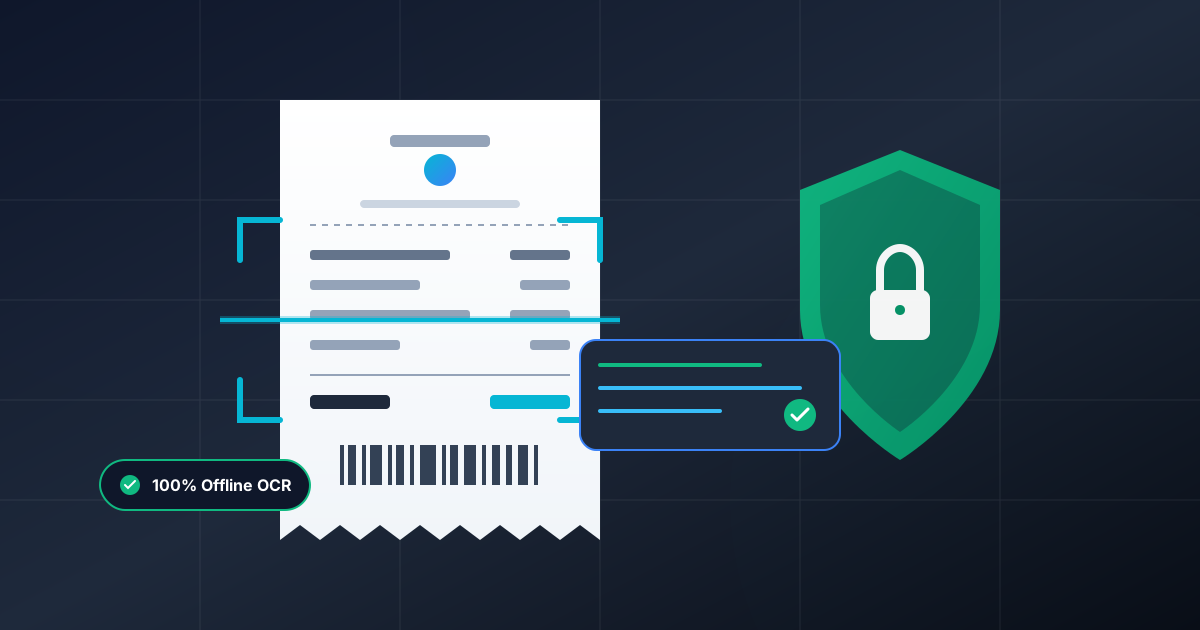
Quick Answer: To read and extract text from PDF receipts offline, use a browser-based client-side tool that performs local Optical Character Recognition (OCR). This processes your document entirely within your device’s memory using WebAssembly, ensuring sensitive receipt data like credit card numbers and item lists are never uploaded to an external server.
Managing digital receipts for expense tracking, tax preparation, or corporate auditing is a routine part of modern financial workflows. However, most PDF receipts arrive in two distinct formats: native digital PDFs created directly by vendor software, or scanned paper receipts stored as image-based PDFs.
While extracting text from native digital PDFs is straightforward, dealing with image-based scans often pushes users toward cloud-based conversion tools. Unfortunately, uploading confidential financial receipts to third-party web servers introduces significant security and privacy risks.
In this comprehensive guide, we will explore how to read, search, and extract text from PDF receipts offline—100% locally within your web browser—ensuring complete confidentiality and total zero-leak data protection.
Why Offline Receipt Extraction Matters for Privacy
Every receipt you receive contains a wealth of sensitive personal and financial data. Common data points found on everyday receipts include:
- Partial or Full Credit Card Numbers: Payment methods, merchant identifiers, and transaction tokens.
- Personally Identifiable Information (PII): Your full name, billing address, phone number, and delivery location.
- Purchasing Patterns: Detailed itemized lists showing personal health purchases, business assets, or travel itineraries.
- Corporate Secrets: Internal vendor pricing, purchase order details, and account numbers.
When you use traditional online PDF utilities, your files are transmitted across the internet to distant servers. These files may sit in cloud temp directories, undergo server-side analysis, or even be cached indefinitely. If the provider experiences a data breach or misconfigures server permissions, your financial records could be exposed.
The Client-Side Advantage: Privacy by Design
Modern web technology, specifically WebAssembly (Wasm) and advanced local JavaScript engines, allows complex tasks like optical scanning and text processing to execute directly inside your web browser.
When you use local tools like DumPDF, processing occurs locally on your machine’s CPU and RAM. Your files never leave your device, working seamlessly even if you disconnect your Wi-Fi or turn off your network connection entirely.
Native PDFs vs. Scanned PDF Receipts
Understanding the structure of your PDF receipt dictates the exact extraction method required:
1. Vector / Native PDF Receipts
These are generated electronically by platforms like Uber, Amazon, or digital point-of-sale systems. The text layer is built natively into the file structure. You can highlight text using your mouse cursor, search keywords using Ctrl+F (or Cmd+F), and copy-paste text directly into spreadsheet programs like Microsoft Excel or Google Sheets.
2. Rasterized / Scanned PDF Receipts
These are created when a physical paper receipt is photographed via smartphone or scanned using an office scanner. The PDF is merely a container wrapping a visual picture (JPEG or PNG). The computer treats the document as pixels rather than readable text, making simple copy-paste operations impossible without dedicated processing.
Step-by-Step: Extracting Text from PDF Receipts Offline
To extract readable text from scanned or unselectable PDF receipts without sending files over the web, follow this step-by-step offline workflow.
Step 1: Standardize Your Receipts
Scanned receipts often arrive rotated sideways, upside down, or skewed. Before running character recognition, make sure all document pages are oriented correctly. If your receipt is saved as a raw image format rather than a document container, you can also convert images to a structured document first.
If you frequently deal with raw image captures from smartphones, you can read our detailed guide on how to convert PDF to image locally to understand how visual media and document frames interact entirely on your device.
Step 2: Combine Bulk Receipts (Optional)
If you have multiple small receipt files from a single business trip or month of expenses, processing them individually can be tedious. Before running text recognition, it is often more efficient to merge PDF files into a single, unified document. This enables you to perform a single text-extraction pass across all expense documents simultaneously.
Step 3: Perform Local Optical Character Recognition (OCR)
To convert visual pixel text into real, editable text characters, you need Optical Character Recognition. Rather than using cloud-based OCR services, run a local recognition process.
By leveraging a client-side tool to run local OCR on your PDF, your browser inspects the shapes of characters directly within device memory.
- Open your local web browser tool.
- Select or drag-and-drop your PDF receipt into the browser window.
- Choose the target language (e.g., English, Spanish, German) matching the receipt text.
- Click Process. The local engine analyzes pixel density, isolates lines of text, and creates a searchable text layer directly inside the document in seconds.
[ Visual Receipt Scan ] ---> Local Browser Wasm Engine ---> [ Selectable & Searchable Text ]Step 4: Extract and Copy Data
Once the local OCR pass is complete:
- Use your mouse to highlight line items, tax totals, merchant addresses, and date timestamps.
- Copy the highlighted text directly into your financial ledger, accounting software (such as QuickBooks or Xero), or a spreadsheet.
- Alternatively, save the updated PDF with its newly embedded text layer for archival searchability.
Best Practices for Accurate Offline Data Extraction
To achieve the highest character extraction accuracy when working offline, follow these practical scanning and preparation tips:
- Ensure High Contrast: Thermal paper receipts tend to fade over time. When photographing physical receipts, place them on a dark, non-reflective background under clear, even lighting.
- Flatten Physical Creases: Smooth out folds or wrinkles on paper receipts before scanning. Creases distort letters, causing character recognition algorithms to misread numbers (e.g., confusing
0with8or1with7). - Check Resolution: Scans should ideally be captured at 300 DPI (dots per inch). Higher resolutions provide clearer pixel definitions for fine print on itemized store lists.
- Verify Financial Numerals: Character recognition algorithms perform exceptionally well on word recognition, but numbers lack context. Always cross-check auto-extracted sub-totals and tax amounts against the visual image to eliminate minor single-digit errors.
The DumPDF Offline Commitment
Privacy should never be compromised for productivity. Traditional PDF conversion portals monetization models often involve tracking user behavior or storing uploaded files on external cloud architecture.
DumPDF approaches file handling differently:
- Zero Uploads: Every single operation—from merging and splitting to optical scanning—runs entirely in your client browser.
- Offline Capability: Load the page once, turn off your internet connection, and continue working without interruptions.
- Enterprise Privacy for Everyone: Perfect for accountants, legal professionals, and privacy-conscious individuals handling sensitive financial records.
By choosing local, offline tools to read and extract text from your PDF receipts, you keep total control over your financial records while streamlining your administrative tasks.
Help Keep DumPDF 100% Free & Private
Zero server uploads • No accounts • No trackers